Sign-up
First login
How to log in, the welcome prologue, which screens can come before the dashboard, how the checklist works, and what the banners at the top of the page mean.
You reach the app at your workshop's subdomain followed by /login — for example bianchi-cycles.crankpal.com/login — with the email and password you chose when signing up. If you registered the workshop yourself there are no temporary credentials to change: you just go in.
Before the dashboard, though, the app may stop you on one or two screens. They aren't decorative: until you clear them, the rest of the app doesn't open.
The screens that can come before the dashboard#
They always come in this order, and most workshops see none or one of them.
Welcome and password change
This is for staff, not for the person who registered the workshop. When the administrator creates a user, the app generates a temporary password that the administrator passes on to that person. At their first login that person sees a welcome screen that, in two or three steps, has them accept the documents that concern them (rules for using the app, privacy notice), choose a new password — the temporary one is also known to whoever created the account — and, if the workshop requires it, turn on two-factor verification.
Two-factor enrolment
If the workshop has made a second factor mandatory, anyone without one is stopped here until they set one up. You can choose between an authenticator app, a code by email, or a passkey.
Registering a payment method
Only in countries where a card is required at sign-up, and only if you chose a paid plan. This screen always has three ways out: register the card and the trial begins, or continue on the Free plan — without spending your trial period — or log out. The card form is the payment provider's own: the details don't pass through CrankPal.
Workshop suspended
If the workshop is suspended, a screen appears instead of the app explaining why and what to do to reactivate it. The pages you need to put things right — subscription, support, account — stay reachable.
The welcome prologue#
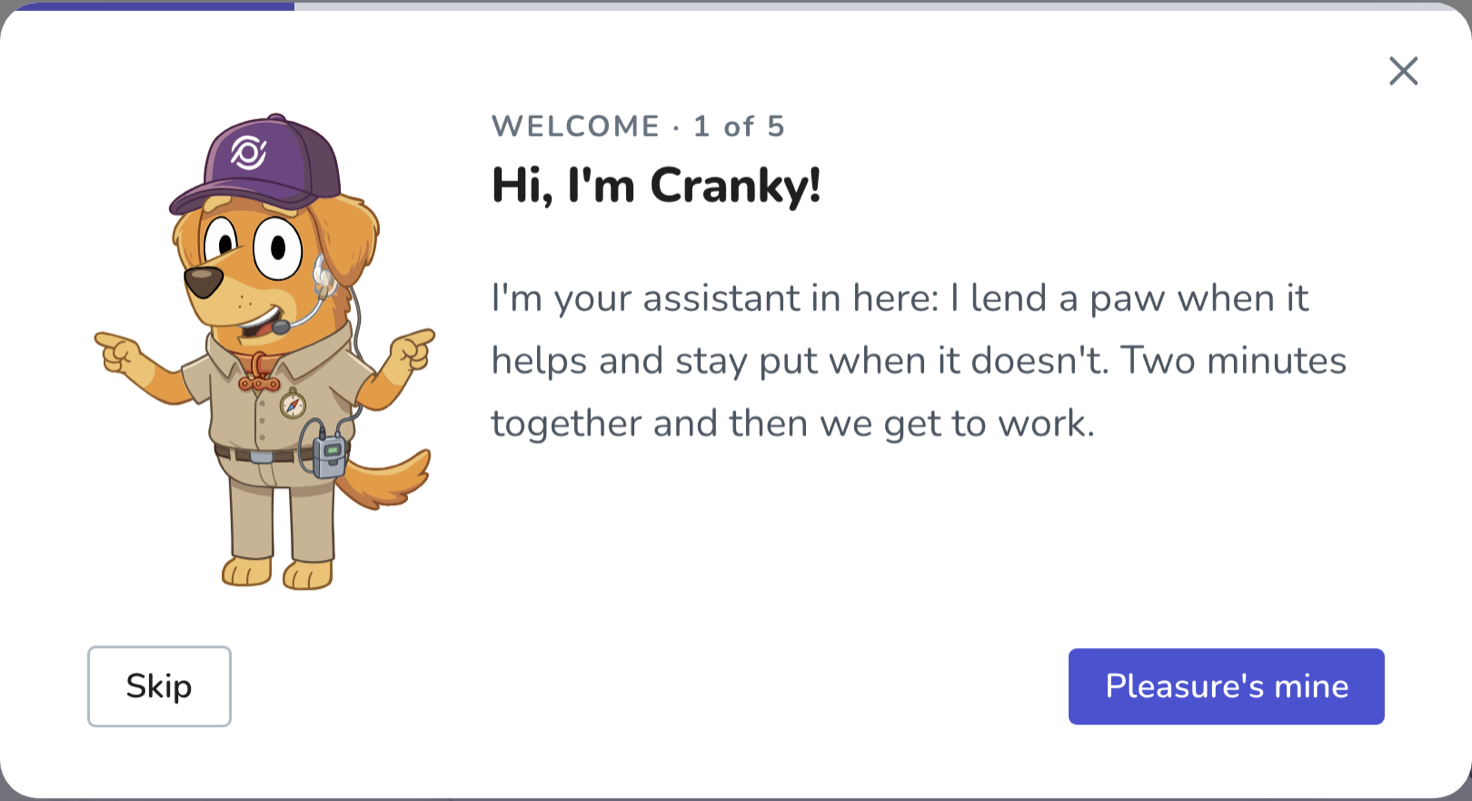
At the administrator's first login — and only theirs — CrankPal opens with a short three-stage prologue, skippable throughout.
One question
"How many mechanics work in your workshop?", with two answers: just me or there's more of us. It's there to show you what concerns you from the start: someone working alone doesn't want shifts, timecards and team chat in their face on day one. It isn't a final decision — every team feature stays available and switches on whenever you want from SettingsUsers. Skip it and it counts as "just me".
The two addresses
A compact screen reminds you of the two addresses you need: the app one (with
/login) and the public one for your shop front. They also arrive in the welcome email, so there's nothing to copy down now.Where the work happens
Three quick pointers at the menu: where jobs are opened, where customer messages land, and where everything else lives — including the assistant, which stays at the bottom right for good.
The prologue ends with an offer, not an explanation: "Shall we write your first quote?". It's the quickest way to understand the app, and it needs neither customers nor filled-in details — the whole path is in Your first 15 minutes. If you'd rather look around, skip it and go to the dashboard.
The checklist and the prompt in the menu#
At the top of the dashboard you'll find a card that changes title as you go: until you've finished the first round it reads Your first job, then it becomes Complete the setup. There's nothing to tick by hand: each step marks itself done when the matching data actually exists in the app — and it counts even when a member of staff does it.
The steps run on two tracks. The first is your first job, and it's the backbone of the early days:
- Write your first quote — with no customer and no workshop details.
- Send it to the customer or turn it into an order.
- Close your first work order.
- Issue the first document and record the payment.
The second track is setting up the workshop: a messaging channel, your logo and — if your plan allows more than one login — your first member of staff. Opening hours aren't there: they aren't needed for the first job and become a reminder later, once the first loop is closed. The service catalog, if you see it listed, is already ticked: it arrives preloaded.
The card shows three steps at a time — the last one done, the current one and the next — with the overall count at the top: a path instead of a wall. You can hide it, and it comes back at your next login unless it's complete by then; when it is, it celebrates and disappears for good.
Away from the dashboard, that same next step stays in view as a prompt in the menu: it says what to do now ("create your first quote", then "turn it into an order"…) and takes you there in one click. It updates itself as the data appears and switches off when both tracks are complete.
As the workshop grows, suggestions can appear: create a second user and the shifts and timecards module is offered, do jobs at customers' homes and the route planner is. They're banners you dismiss and don't see again.
The banners at the top of the page#
Notices can appear under the top bar. They're all actions to take, not advertising.
- Fiscal data to complete. It appears until your VAT number and an e-invoicing address are on file. It blocks nothing and you can dismiss it for the session, but it comes back. If your paid plan is about to start, a window with the form ready to fill in replaces the banner: see Fiscal data verification.
- Legal documents to accept. When we publish a new version of the Terms or the privacy notice, the notice asks you to read and accept it.
- Suspension or payment reminder. In the milder cases — holiday mode, a first reminder — a fixed banner stays put and the app keeps working.
Where to start#
Not with the setup: with the first job. The advice is to do the whole loop straight away — quote, order, document — because that's what makes the app click within a quarter of an hour, and what tells you, honestly, what you actually need to set up.
Setup comes after, in this order: the messaging channel (that's what brings customers in), the logo, your opening hours when you want to open up online booking, and staff accounts if you don't work alone. The service catalog isn't on the list because it's already there: you personalise it the moment you notice a price isn't yours.
The whole loop from first quote to first document.
Workshop profile and hoursWorkshop details, logo, map position and the hours that open up online booking.
Users and rolesCreating staff accounts and deciding what each person sees.
DashboardHow to read the main screen of the working day.
Common problems#
I can't remember the app address
It's the word you chose when signing up, followed by .crankpal.com/login. If you can't recall it, ask a colleague who already logs in, or write to support: without that address there's no way to reach your app.
A member of staff can't log in with the password I gave them
The temporary password is single-use and expires with the first change. From the users tab you can regenerate it and resend the credentials: the old one stops working.
I'm stuck on the payment method screen
The same screen offers «continue on the Free plan»: it unblocks the app immediately and doesn't spend your trial period, which stays available for whenever you decide to move to a paid plan.
A checklist step still shows as open but I did it
Reload the page: the card reads its state when it loads. If the step stays open, check that you saved the data rather than only filling the form in.
I answered «just me» and now I've taken someone on
Nothing to redo: create the user in SettingsUsers and the team features appear on their own, with a suggestion pointing them out. The day-one answer decides what you see at the start, not what you can do.
I skipped the welcome prologue
You've missed nothing: both addresses are in the welcome email and the dashboard checklist is your guide. If you want the tour of the screens again, ask the assistant at the bottom right.