Your first 15 minutes
The shortest path from your first login to your first finished job — a quote with nothing on file, send it or print it, turn it into a work order, close it and issue the document.
This is the day-one page. You've just signed up, the app is open in front of you and you've entered nothing yet: no customers, no bikes, none of your workshop details. That's exactly right — CrankPal is built to get you to your first job before it asks you for anything.
There's one path and it takes a quarter of an hour: write a quote, send it to the customer or print it, turn it into a work order, close it and issue the document. It's the same cycle you'll repeat every day; running it once straight away, even on a made-up job, is the fastest way to understand everything else.
What you don't need to start#
Before we begin, let's clear away everything you do not have to prepare.
- You don't need a customer. Quotes and work orders open without one. The name comes when it's actually needed.
- You don't need your workshop details. Address, postcode, town and phone are asked for when you print, because that's where they actually end up — in the letterhead.
- You don't need a VAT number. We never ask for it on a quote. It's needed for your first invoice or receipt, not before: see Fiscal data verification.
- You don't need opening hours. The internal calendar works either way. Hours are what lets customers book by themselves, and that step can wait: see Workshop profile and hours.
- You don't need a price list. There's one already inside, with the most common jobs: personalise it whenever you like in Service catalog.
You need one thing only: knowing what you're about to do to a bike, and what you charge for it.
Minutes 1-5 · Your first quote#
Open Quotes from the menu and press New quote.
Skip the customer
The customer is the first field. Pick one if you have them; if you don't — or if you're just trying things out — choose Continue without a customer. The app tells you what stays out of reach while the customer is missing (sending it, having it accepted with a signature, printing it, the automatic reminders): it's a notice, not a block.
Add two or three lines
Each line is either Labour or a Part. Type the first few letters of a job — "serv", "chain", "brake" — and the preloaded catalog offers it with price and duration already filled in. You correct the price on the line: the catalog one is only a starting point.
Save
The quote gets a number (
P-0001) and starts as a Draft. It exists for you only: nobody has seen it yet.
Done. You're already past the point where most workshop software asks you to fill in half a customer record.
Minutes 5-8 · Send it or print it#
Now the quote has to leave the workshop, and to leave it needs somebody to go to. This is where CrankPal asks you for what's missing — and only for that.
- Send to customer needs the customer. If there isn't one, a guided window opens and lets you attach an existing one or create one on the spot: a first and last name is enough. Then the action resumes on its own, without making you start over.
- Print needs the customer and the details that go in the letterhead: your workshop's address, postcode, town and phone. Same window, same return to what you were doing. We ask once.
A sent quote moves to Sent and appears in the customer's app, where they can accept or reject it — with a signature, if you want one. If they don't reply, an automatic email reminder goes out. A printed quote you hand over at the counter: it's the same document, on paper.
Minutes 8-12 · Turn it into an order and close it#
When the customer says yes — in person, on the phone or from their app — the quote becomes the actual job.
Convert it into a work order
The Convert to order button is on every draft, not only on quotes already accepted: at the counter the yes almost always comes out loud. If the quote isn't marked accepted, the app asks you to confirm — converting it skips the digital acceptance and any signature. Every line goes into the order, discount included.
Work and tick the lines off
Inside the order you tick jobs off as you do them. If you want the time counted, Start working starts the timer in your name: at the end it asks what you did, and that text stays in the bike's history.
Close the order
When you tick the last approved line the order closes itself and the end-of-work summary opens: labour, parts, discount, total. From there you tell the customer the bike is ready, with the message already written.
If instead you want to work without a customer — your neighbour's bike, your own dry run — open the order straight from New order and choose Continue without a customer: in place of a bike on file you write a free-text label ("red Bianchi, customer at the counter"). What works and what doesn't is in Work orders.
Minutes 12-15 · The document and the money#
Last step of the cycle: give the customer something to hold and record the money.
What you can issue depends on the plan. On the Free plan there are no electronic fiscal documents: you record the cash payment and hand over the courtesy document as a PDF — useful to the customer, but with no fiscal value, and the sheet says so. On the plans that include them you issue a receipt or an invoice straight from the order's closing screen. The detail is in Invoices and receipts.
This is where — and only where — the app asks you for fiscal data: your VAT number in order to issue, and the customer's complete details if the document is an electronic invoice. It isn't our red tape: it's what's needed for the document not to be rejected.
With the payment recorded the cycle is closed. You have a quote, an order, a document and a customer on file: from now on your dashboard has real numbers to show you.
What the app does while you learn#
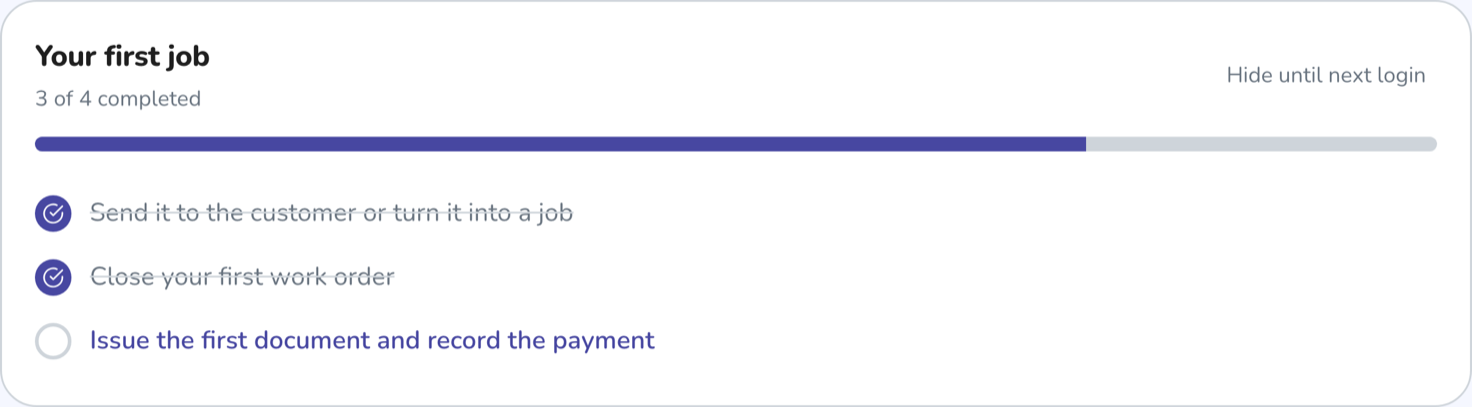
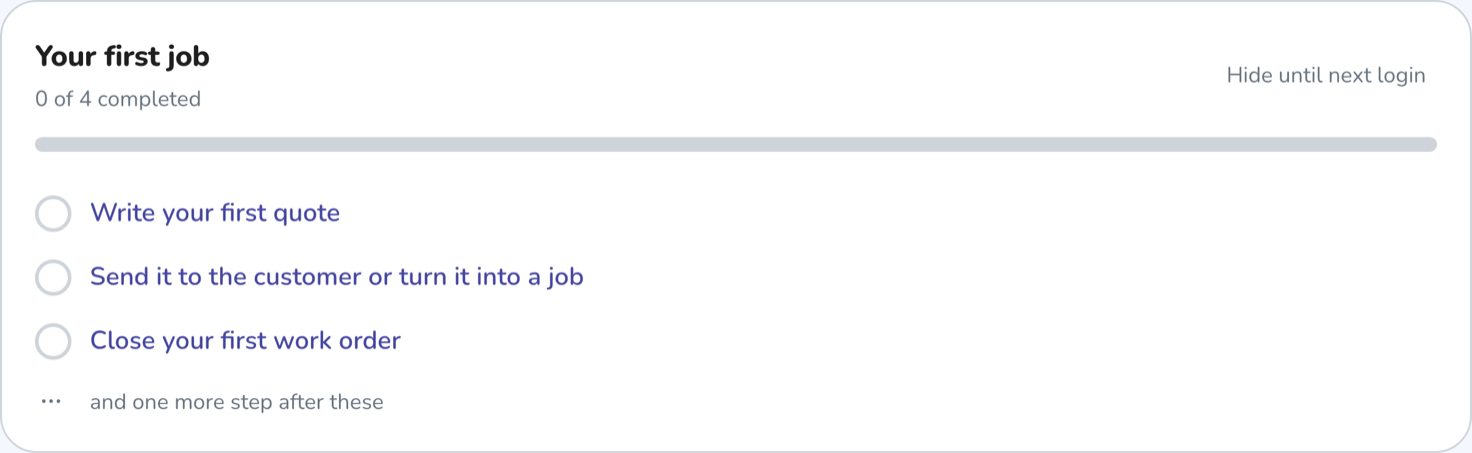
For the first few days three things keep you company, and they switch themselves off when they're no longer needed.
- The dashboard checklist shows the steps you've just taken and the next ones, three at a time, with the overall count at the top. There's nothing to tick by hand: each step marks itself when the data actually exists.
- The prompt in the menu keeps the next step of your first cycle in view — "create your first quote", then "turn it into an order", and so on — and takes you there in one click.
- The dashboard stays faded until you close your first work order. It isn't locked: everything is still clickable. It's just a way of saying those numbers get interesting after the first job, not before.
Once the first cycle is done the prompts move on to setup — logo, messaging channels, hours — and then disappear.
Common problems#
I pressed Send and it asked me for a customer
That's the intended behaviour: a quote leaving the workshop needs somebody to go to. The window that opens creates one in ten seconds — a first and last name is enough — and then the send resumes by itself.
It asks for my address and phone just to print
Yes, because that's what gets printed at the top of the sheet. We ask once: from the next print onwards we don't ask again. You can also enter them beforehand, in SettingsWorkshop.
The invoice or receipt button is locked
That depends on the plan: electronic fiscal documents are only included in some. The button stays visible and explains what it unlocks. See Features by plan.
I want to run the dry run again from scratch
You can leave the practice quote where it is: draft quotes bother nobody. The made-up work order is better cancelled, so it doesn't end up in the month's figures.
From here on, the rest of the documentation follows the real work.
The quote in full: without a customer, sending, printing, acceptance, conversion.
Work ordersCheck-in, timer, lines, approvals, closing and handover.
Workshop profile and hoursDetails, logo, map position and the hours that open up online bookings.
First loginWhat can appear before the dashboard and how the checklist works.