Setup
Users, roles and permissions
How to add a member of staff, what separates the five roles, how first-login credentials work and how your plan's user seats are counted.
Everyone who works in the shop gets their own login: their own name, email and password. You don't share an account — and not just for hygiene. Work order history, the job timer and the activity log all attribute every action to whoever performed it, and on a shared account that data is worthless.
Staff management lives under SettingsUsers and needs the manage_users permission. In practice only administrators have it: this is the screen that grants and revokes access.
Roles and permissions are two layers#
The role is a shortcut: picking one assigns a predefined set of permissions in bulk. The permissions are the twenty real switches, the ones the app checks when it decides whether to show you a menu entry or let you save something.
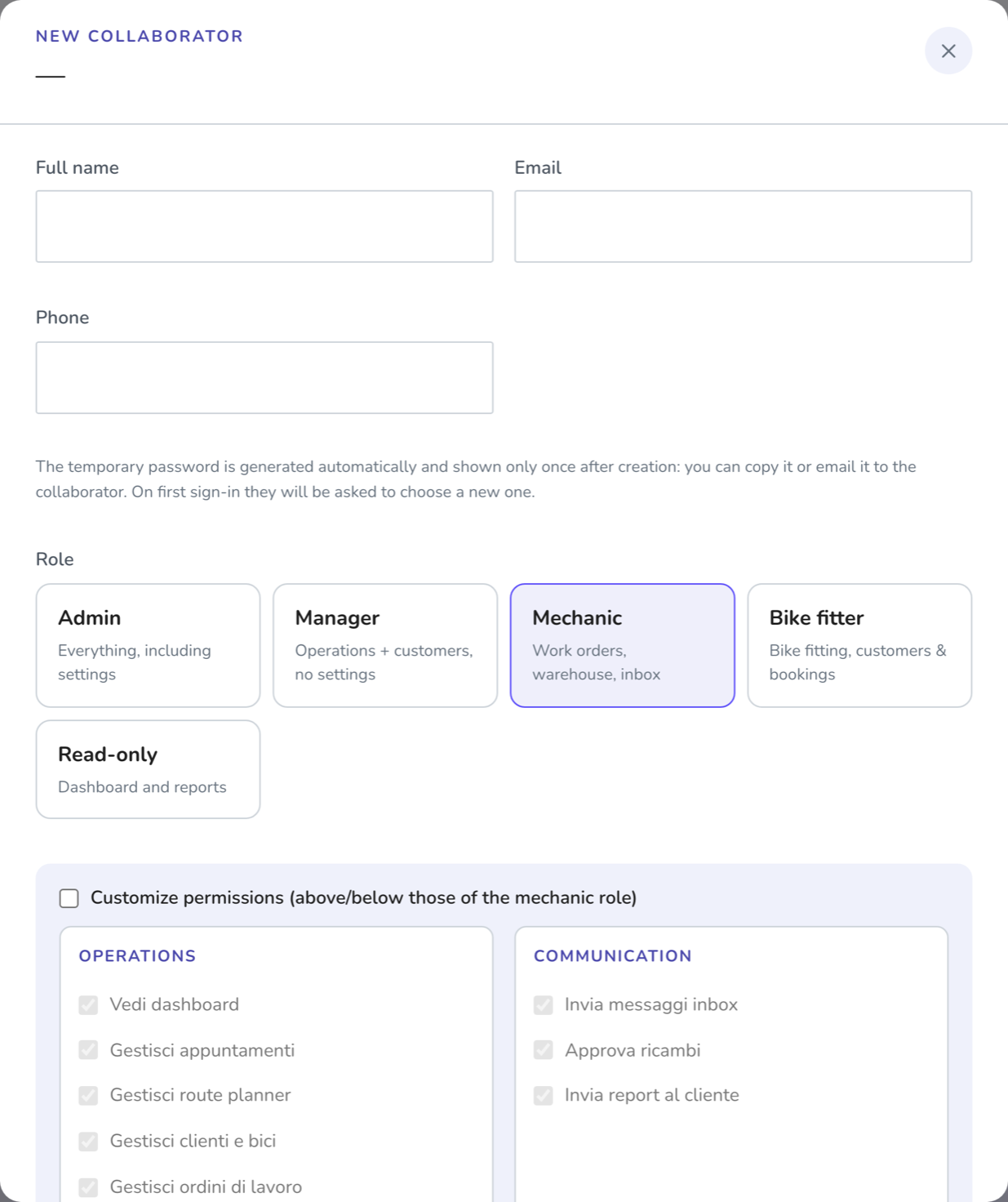
Nine times out of ten the role is enough. When it isn't, the Customise permissions checkbox on the user's card lets you add or remove individual permissions above or below their role's defaults. From then on that user has their own bespoke set: changing their role resets them to the defaults.
One exception: an admin always has everything, and their checkboxes are locked. There is no such thing as an admin with something taken away — if you want to limit someone, they aren't an admin.
The five roles#
| Role | Who it's for |
|---|---|
| Admin | The owner, or whoever really runs the business. Everything, including settings, users, subscription and integrations. |
| Manager | Whoever keeps the shop running but doesn't touch configuration: all the day-to-day work plus the team monitor, without the admin group. |
| Mechanic | Whoever works at the bench: work orders, customers and bikes, bookings, stock, inbox, plus taking payment and issuing receipts. |
| Bike fitter | A specialised role: bike fitting, customers and bikes, bookings. No work orders, stock, checkout or settings. |
| Viewer | Whoever only needs to look: dashboard and financial reports, no changes. Useful for your accountant or a non-operating partner. |
External collaborators#
Nutritionist, athletic trainer and physiotherapist have a role of their own, in the External collaborators box of the role picker. They work with the shop but aren't its staff, and the manager treats them that way:
- they don't take a user seat on your plan, so you can add them even when the seats are used up;
- they have no permissions in the manager, and none can be added: they only see their own appointments (with the visit outcomes: in progress, done, no-show), their own shifts, the price-list services tied to their role and, read-only, the names and contact details of customers and their bikes;
- no tax data, work orders, quotes, messages, reports or bike history: the limit is enforced by the server, not just by the menu.
For appointments to reach them, set their role in the Provided by column of the service in SettingsService price list: bookings for that service are assigned to whoever has that role. If you fill in shifts, on days with shifts the service can only be booked while that person is on shift and free.
One thing worth knowing about the mechanic role: by default it has Invoices and receipts and Digital payments (POS) switched on. That's deliberate — usually whoever is at the counter needs to be able to take money — but if in your shop only the owner handles cash, those are the first two permissions to remove, one user at a time.
How the permissions are grouped#
The twenty permissions fall into four groups, and the groups already tell you the logic of access.
- Day-to-day — the everyday work: dashboard, bookings, customers and bikes, work orders, bike fittings, route planner.
- Communication — what goes out to the customer: sending inbox messages, approving parts, sending reports.
- Management — stock, service catalog, claims, financial reports, invoices and receipts, digital payments.
- Administration — the keys to the building:
manage_users,manage_integrations,manage_workshopand the team monitor. The Manager role is defined as exactly "everything except this group" (with the team monitor as the exception).
The full list, permission by permission, with what it unlocks and who has it by default, is in Permissions.
Creating a member of staff#
Press «+ New staff member»
If you've used up your plan's user seats you can only add external collaborators: for a staff role, see the section below.
Fill in name, email and (optionally) phone
The email is the login and can't be changed after creation. Get it wrong and you'll have to remove the user and create them again.
Pick the role
And, only if you genuinely need to, tick «Customise permissions» to adjust individual switches.
Hand over the temporary password
You don't choose the password: the server generates it and shows it to you once only, in the summary that opens right after creation. You can copy it and read it out in person, or press «Send by email» to have it delivered.
They log in and choose their own
At first login the app asks them to change their password and accept the usage rules before they can do anything else.
There is also Reset password, where you choose the new password yourself (minimum 8 characters) and pass it on. That one is likewise shown once only.
User seats and your plan limit#
How many active staff you can have is set by your plan: Free allows one, the paid plans go higher, Enterprise has no cap. At the top of the page there's always a "used / maximum" counter, broken down into seats included in the plan and seats bought separately where relevant.
On the Pro plan you can buy extra seats, one at a time, from the «+ Buy users» button or from the subscription tab. You're charged pro rata for the remaining period; from the next renewal the seat is part of your regular fee. Seats can be removed too, but only while they're free: deactivate a staff member first, then drop the seat.
Deactivate, remove, anonymise#
Three different actions, increasingly final. Picking one at random is the quickest way to lose data you needed.
- Disable — revokes access, nothing more. The person stays in the list, greyed out, and comes back with one click. It's the right action for seasonal work, a leave of absence, or a doubt.
- Remove — access is revoked and the user disappears from the list. The history (work orders, logs) stays, attributed to a "removed" profile, and the email is freed up for reuse.
- Anonymise — deletes the personal data (name, email, phone, photo) to answer a deletion request. The operational history stays, attributed to an anonymous profile.
Who did what is in the recent activity log, at the bottom of SettingsAccount: the workshop's most recent events with author and timestamp. It's a glance, not an investigation tool.
Common problems#
A staff member can't see a menu entry they should see
Check two things, in this order: the permission on their user (missing it, the entry doesn't appear at all) and the workshop's plan (if the feature isn't included, the entry is there but opens a panel explaining what it unlocks). They are two independent systems and they stack.
I mistyped a staff member's email
The email can't be edited after creation. Remove the user and create them again with the right address: removing them frees up the wrong address and the history stays.
They say they never got the credentials email
Have them check their spam folder. If it isn't there, use «Resend credentials»: it generates a new password and sends it again. Bear in mind this invalidates the old one.
I customised someone's permissions and now I can't remember what I changed
The «Permissions» column in the list shows how many permissions the user has out of the total. To go back to the defaults, open their card and untick «Customise permissions»: they pick their role's set back up.
I can't create a staff member
You've hit your plan's maximum number of users (external collaborators don't count and can still be added). Either free a seat by deactivating someone, or buy an extra seat (where the plan allows it), or move up a plan.