Daily use
Bikes and census
Register a bike in four steps and send it to the rider, record its components, follow inspection due dates and wear from real kilometres, record an inspection outcome, bind a CrankPal Tag, and keep the service log and bike fitting history.
A bike on CrankPal is more than a make and a model: it is the list of its components, the condition of each one, the kilometres ridden and everything you have ever touched on it. Each component's inspection due date, replacement quotes and customer reminders all come out of that list.
The list lives under CustomersBikes and is searchable by make, model or owner. Bikes themselves, though, are added from the customer record, not from here.
Adding a bike#
From the Registered bikes panel on a customer record, Add opens New bike. There are four steps, in the same order as the ones the rider goes through in the app: you fill in what you see in the workshop, they confirm it and add what only they know.
Model
You search for the model in the catalogue or type it in by hand, pick the size and press Continue. How the search works is explained below.
Configuration
How the bike is built: e-bike (crank motor or hub motor), gears (mechanical, electronic, belt, internal hub gear or single speed, with or without a front derailleur), brakes (rim, disc or hub), tyres (tubular, clincher or tubeless), suspension, fixed or dropper seatpost and, as free text, other components such as lights or mudguards. The answers the catalogue knows are already marked and can still be corrected, because the catalogue isn't always complete.
The list of components comes from these answers: Continue saves the bike.
History
What you see in the workshop: Ridden since (month and year), the average speed if you know it (CrankPal works out the hours ridden from it), the Last workshop inspection and the kilometres already ridden, with the part-by-part wear estimate. Rain, storage and care aren't asked of you: the rider knows them, and the app asks. If you don't have time for the estimate, Skip the estimate.
Send to rider
A summary shows who fills in what: model, configuration and history were done by you; rain, storage, care and future use will come from the rider in the app. Save and send to with the customer's name sends them the bike by email; Save without sending closes without an email.
Finding the model#
The first thing you see is the model catalogue search: type two characters of make and model and known models appear, with year and build.
When the extended catalogue is active, below the models CrankPal already knows you also see the ones from the extended catalogue, with a thumbnail, and at the bottom of the list you see how many models each catalogue found. A model CrankPal already knows is not listed twice. You can type the year in the search ("checkpoint 2021"): it becomes a filter.
Picking a catalogue model fills in make, model, year, category, subcategory and the e-bike flag for you, shows the model photo under the search, and enables the Prefill components from the model tick box: the bike is then created with component slots already derived from that model's specification. For a model from the extended catalogue, next to the tick box you see how many stock components will be created. It is the fastest way to avoid starting from a blank page.
Stock components are the ones the bike leaves the factory with: on the record they are marked from the model specification, and if the customer has changed something, you correct it. Brake pads, cables and fluid are not in the specification: Add missing components adds them, without a brand, ready to be surveyed.
If the model isn't there, fill it in by hand: make and model are required; the category starts on Urban and you change it if needed; year, subcategory, frame serial and the e-bike flag are optional.
A bike created by hand, or created before the catalogue existed, can be linked to a model later. On its record, under the title, you see Does it match a catalogue model? with make and model already in the box: press Search the catalogue, pick the right model among the ones proposed (same-year ones come first) and press Link. The bike gets the model photo and, if it had no category, the model's one; with the Also add the missing factory components tick box it also receives the stock slots it doesn't have yet. The search only runs when you ask for it, and Do not suggest again for this bike hides the box on that computer.
As you type the make, CrankPal suggests the ones it knows: the makes in the catalogue and the ones already used on the workshop's bikes, with how many bikes use them. When you leave the field, if you typed the make differently from the catalogue, for example «rocky mountain» instead of «Rocky Mountain», The catalogue spells it appears under the field with the right name and the Use this name button. Nothing changes on its own: you decide, so the same make doesn't end up spelled three different ways on three bikes.
Category and subcategory are the same as in the extended catalogue: five categories (Mountain, Road, Urban, BMX, Youth) and, inside each one, its subcategories, from trail to enduro, from gravel to track, from folding bikes to box bikes. An e-bike is still a trail bike or a cargo bike: the e-bike tick box goes next to the category, not in its place.
Kilometres and wear estimate#
In the History step, under the questions about the bike, CrankPal asks for the Kilometres already ridden: move the slider and the wear of every component adapts, then adjust single parts if needed and press Continue. If you picked a model with a photo, the bike's photo sits next to the slider: while CrankPal works out where the parts are, the logo spins over it, and as soon as it has found them each part takes the colour of its condition, as in the diagram. Tapping a part on the photo, or on the diagram, takes you to its slider.
In the same step the parts are grouped by assembly (drivetrain, brakes, wheels…) and the ones that came from the model carry the From specs label with brand and model. Edit changes a part by picking it in the catalogue among the products of its category, or by typing brand and model by hand; Add component adds one the specification did not have.
Bikes registered before this step existed have never been through it: opening their card you find the notice The new census is available at the top. OK opens the same Kilometres already ridden, Later brings it back in a week, Don't show again closes it for that bike. The choice applies on the computer you make it from; as soon as someone saves the estimate, the notice disappears for everyone.
Sending the bike to the rider#
With Save and send an email goes out from your workshop, with your logo and contact details. With that same email the customer confirms their address, downloads the app if they don't have it and accepts the bike; then they check the details you entered, correct whatever isn't right and say how they'll ride it. From then on the inspection due dates come in, and you see them on the bike page too.
Until the customer accepts, the bike belongs to your workshop: you see it in the workshop system and it doesn't appear in their garage. The email and the workshop system's response are the same for someone who already has CrankPal and for someone who has never used it: nothing here tells you who is signed up. While the app is in preview, anyone who receives a bike from you also gets access to the app, and it doesn't use up your workshop's invitation places.
What Save without sending does depends on the customer. If the connection is active, the bike goes straight into their garage, as before. If the customer is Waiting for the cyclist, the bike stays in the workshop system, visible only to you, until you send it from the customer record; when they accept it, they also accept the connection with your workshop, in one go. Without an email address the bike can't be sent: add one on the customer record.
If the customer doesn't answer, after 7 days they get a single reminder, about the bike. After 30 days the registration closes and the bike stays with the workshop as Expired. No other reminders, neither from you nor from CrankPal. If the customer answers Not my bike, the bike goes into no garage and on the customer record you read Not accepted. Where each bike stands, and how to send it again, is explained in Customers.
If the customer corrects something you entered, for example the kilometres, their correction wins: the bike is theirs. On the bike page the Bike setup panel shows, group by group, what they have confirmed and what is still as you filled it in.
The component census#
Recording a census means telling CrankPal which parts are on the bike and what condition they're in. It takes time the first time, then it pays for itself: from then on you know what is about to run out, you build a quote in a minute, and the customer gets reminders at the right moment instead of at random.
Start the census
On the bike record, Components tab, press Start census. Answer six questions: category and subcategory, brakes (disc or rim), drivetrain, front chainrings (only if it has gears), suspension and, if you know it, the groupset. There's a tick box for e-bikes too. The groupset list comes from the CrankPal catalogue: pick one and chain, cassette, derailleur and brake pads are born with brand and name, and with the exact product where the catalogue holds a single reference.
Category and subcategory are the same as when you create the bike, and start on the ones already set for that bike; for a bike created earlier, CrankPal works them out from the type it had. The chainrings tell CrankPal whether the bike also has a front derailleur: with a single chainring there isn't one, and CrankPal doesn't invent it.
Check the slots that were generated
CrankPal creates the slots that bike should have: wheels, brakes, cassette, rear derailleur (and the front one if you declared two or three chainrings), chain, chainset, fork, saddle, cockpit, frame, plus battery, motor and display for an e-bike (add the controller by hand where it is a separate part, as on hub motors: display and controller are replaced on failure, so they carry no wear forecast). Once the bike already has components, the button becomes Add missing components: it adds the ones that type of bike usually has and that aren't recorded yet, and leaves what's there as it is.
Brakes aren't a single entry: on each axle you get pads, caliper and, on disc bikes, the rotor. They wear in different ways, and on the diagram you tap each one separately.
Go over the bike part by part
In the Diagram view you tap a component and pick one of three states: Good, Mid, Replace. Three taps, no percentage to invent. The arrows take you to the next slot without going back.
Add detail where it matters
From Details you enter the part's name/model and brand. From the Full card you can also take a photo, see the kilometres ridden since it was fitted, and read its inspection history.
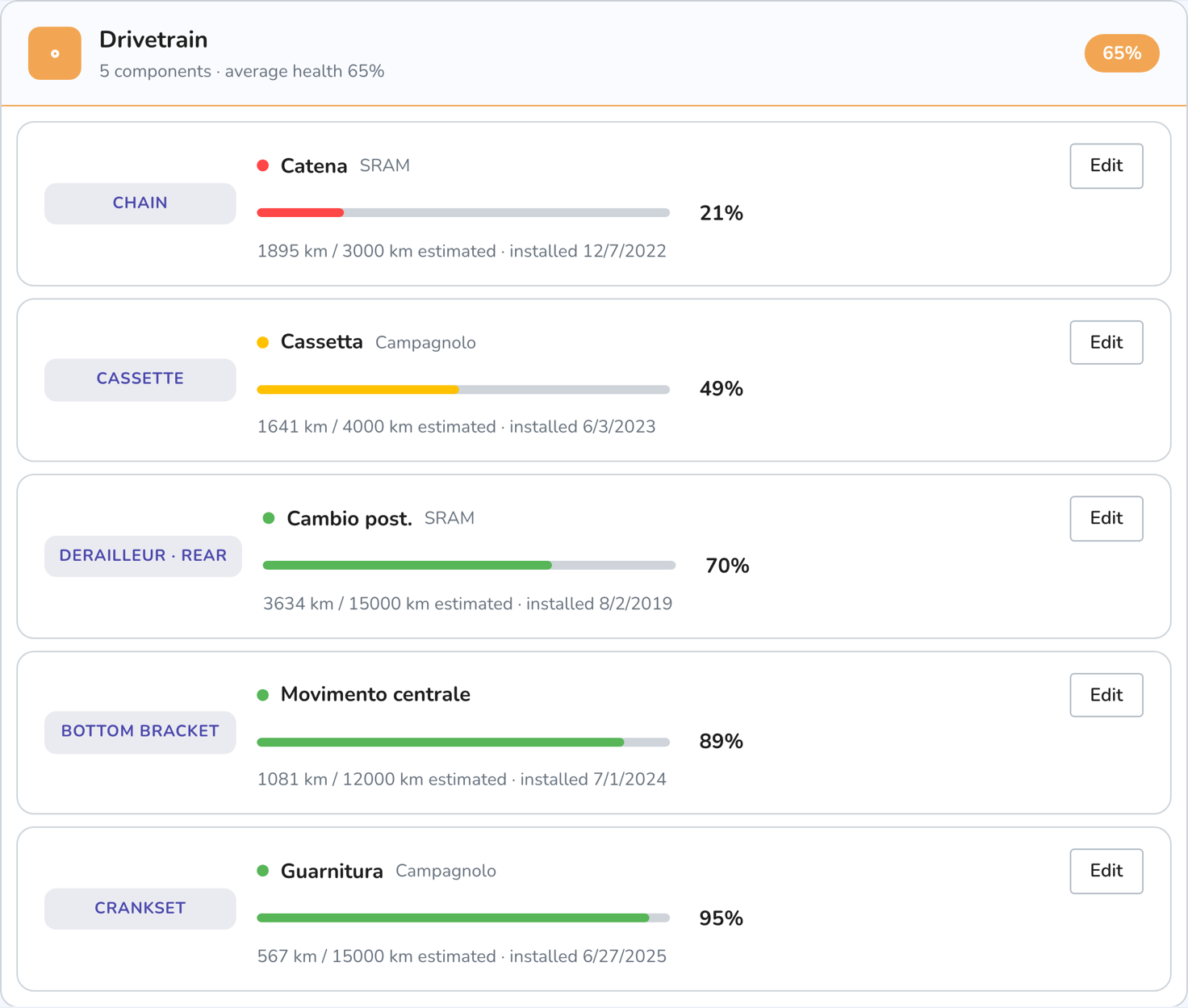
The List view shows the same components grouped by assembly (drivetrain, brakes, wheels, cockpit, frame and fork, e-bike), with the health percentage, the inspection due date, estimated kilometres and the date it was fitted.
The Wheels group is split into Front and Rear: each wheel's tyre, rim and hub bearings sit together, and next to the wheel's name you read the last inflation. With Log inflation you note the pressure of one or both wheels, in bar or psi, and you find it again in the unit you typed. Inflating doesn't touch the tyre's wear: it's a reading, like the odometer.
Every component carries a note of where the data came from: verified by you, estimated, from the model specification, or from the catalogue. It tells you how far to trust it.
If the device has a microphone, the Voice button lets you dictate the condition while your hands are on the bike: you say the state and move on to the next part without touching the screen.
Inspecting and replacing a component#
CrankPal doesn't tell the rider "replace it": it tells them when to have each component inspected. Whether a part needs changing is decided by whoever looks at it, the rider at home or you at the counter. That's the product's rule: CrankPal forecasts, the mechanic diagnoses.
Inspection due dates#
In the List view every component has, next to its health percentage, its inspection due date: a phrase like "Inspection due in 2 weeks" in the colour of its level, and the three counters, Distance, Hours ridden and Time, with the one that comes first in bold. Underneath you read the last inspection: the date, the outcome, who did it (you, the rider, another workshop, or declared in the bike's history) and the note, if there was one.
The counters start from the part's last inspection or replacement, and each one has its own expected life. At the pace the bike is ridden each one becomes a number of days, and the due date is the nearest: whichever comes first. Nobody declares the hours ridden: CrankPal works them out from the distance and the average speed, measured on the rides when there are any. Rain, storage, the rider's weight and basic care make the expected life longer or shorter; as soon as real rides come in, measured data takes the place of declared data.
The words are the same the rider reads in the app: beyond three months "Inspection due in more than 3 months", "6 months" or "1 year"; then months, then weeks; and "Inspection overdue: check before riding" when time is up. Never a number of days.
Only you see the health percentage: it's an estimate of the life the part has left, and it's for whoever has the part in front of them and can challenge it. To the rider the app shows the due date, the bar towards the inspection and the counters. When they call you about a part, you're both talking about the same due date.
Recording an inspection outcome#
When the customer books from the app and ticks the parts to be checked, the Components tab shows The customer asked to inspect N components, with their names and Record the outcome. Even without a booking, above the components there's Inspection outcome. Recording an outcome requires the manage_customers permission.
Check the list
The components the customer asked about are already listed, with their due date and the appointment they come from. Add an inspected component adds the ones you looked at on your own initiative.
Pick an outcome for each row
OK, Worn, Needs replacing or Replaced. A row without an outcome isn't recorded.
Write a note for the rider
Optional. The rider reads it in the app, next to the outcome: "pads still good, we'll check again in spring".
Record
Record the inspection. If something needs replacing, Quote for N to replace records the inspection and opens a quote with those parts, like Generate single quote: the outcome isn't lost.
| Outcome | What happens |
|---|---|
| OK | The count restarts and the next inspection comes at half the expected life. An early inspection never brings the due date forward: whichever is later, the old due date or the new one, counts. |
| Worn | The part still holds, but not for long: the count restarts and the next inspection comes at a quarter of the expected life. |
| Needs replacing | The light stays red until the part is changed. |
| Replaced | It's a real replacement, like Mark replaced: the count restarts with the full life. |
The outcome reaches the rider's app with your note, and the component's History shows the inspection with who did it. The rider writes into the same record from the app, when they answer "I inspected it, all OK" or "I replaced it": you and they read the same due date. Your workshop's outcomes also help the prediction model, like the assessments you give with Assess real condition · train the AI.
Replacing#
When one or more parts are set to Replace, a panel appears above the components with the count and a Generate single quote button: it builds one quote with a line for each part plus a labour line, and takes you there to finish prices and hours. Better than one quote per part.
The same goes for a single component: from its full card, or from the slot editor when you set it to Replace, the Propose a quote button adds that line to a quote.
If the bike already has a draft open, we ask before creating another one: you can add the lines to the existing draft or make a new quote. It's what stops you ending up with three drafts for the same bike just because you flagged three parts one at a time. If there's no draft, nothing changes: the quote is created as always, no questions asked.
Quotes already sent to the customer appear in the list but can't be used as a destination: that document is in the customer's hands and its total can't change under their eyes. To alter it you need a revision.
When the part is actually fitted, use Mark replaced on the component's full card. You can scan or type the part's barcode: if it is in the catalogue, name, brand and cost fill themselves in. On confirmation the component's health goes back to new, its kilometres restart from zero and the replacement appears in the log. If you got it wrong, Undo replacement is right there.
If the part was changed some time ago — by you without logging it, or by someone else — there is no need to pretend it is new: in the component editor (Edit) tick Part replaced and enter how many kilometres ago, leaving 0 if you are changing it right now. The part starts from those kilometres and CrankPal recalculates its health. The replacement date is estimated from the bike's rides, or from how much the bike is ridden when the rides are not enough, and in the component's History the entry carries the Reconstructed label with the kilometres you declared. Here too, Undo replacement is right there afterwards.
The full card also shows the suggested part: the catalogue part linked to that slot, with an indicative price, your stock level and the supplier — so you know straight away whether you have it or need to order it.
Wear prediction and real kilometres#
Under the components there's a line saying what the estimate is based on: your workshop's own model, the network model, or the baseline estimate, along with how many assessments you have given and the average error in kilometres. It is a stated estimate, not an oracle.
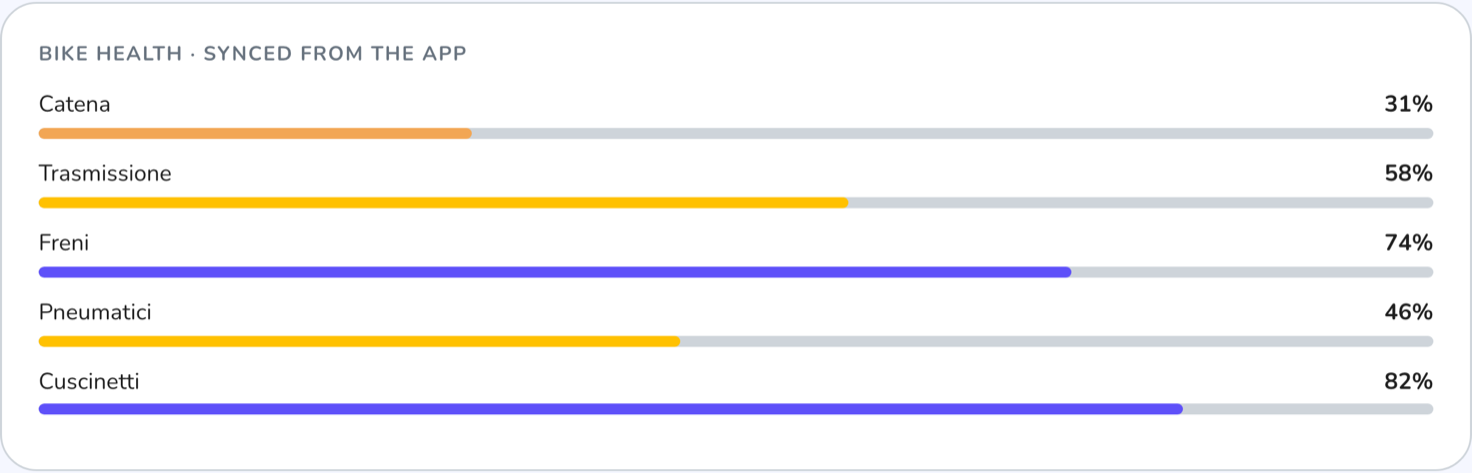
The Assess real condition · train the AI button opens a screen where, for each component you have actually inspected, you pick between As new, Good, Worn and End of life, and say whether you replaced it and why (wear, damage, upgrade). You only fill in what you looked at. Each assessment corrects the estimate on that bike and improves the model.
Kilometres come from the cyclist's rides, in the Rides tab: Strava, Garmin and rides logged in the app.
If the customer lets other people use the bike through the app (by sharing it or adding it to their family group), the Rides tab also lists their rides, marked Another rider: you see the day, distance, elevation and weather, without name, time or duration. Their kilometres count towards wear just like the customer's, which is why a bike ridden by two people wears out sooner than expected: the note above the list of rides reminds you of it.
Without real kilometres, predictions stay estimates based on bike type and expected component life: they work, but far less well.
When the customer doesn't log rides#
Many customers ride every day and log nothing. For them the bike page has two gestures that keep the forecast alive without rides:
- How much they ride: one answer, Every day, At weekends or Now and then. From then on, if no rides arrive, the forecast advances on its own with an estimated mileage per bike type, and the line under the stats says how many kilometres are estimated and since when. If the rider has already said in the app how much they ride per month (the bike setup asks them, in the Future use step), their figure counts.
- Read the odometer: type the kilometres you read on the e-bike display or the bike computer. The difference from the known total goes to the components like a ride, and the estimate restarts from that date. If you read a number lower than the total, the total is corrected and the components stay as they were. The same reading can be taken at check-in, in the Odometer reading field. From the second reading on (at least a week after the first) the weekly pace comes from the readings rather than from the answer: the yearly service becomes the measurement, and the line says so.
As soon as the customer logs a ride, or one arrives from Strava, Garmin or phone motion, rides take over again and the estimate resets.
The wheel sensor#
For customers who want neither the app open nor a tracker there is the Bluetooth speed sensor on the hub: it counts wheel revolutions and the customer's app records the ride on its own, phone in the pocket and app closed. Either the workshop or the customer can fit it.
- What to fit: a speed sensor with the standard Bluetooth profile (CSC): Garmin Speed Sensor 2, Wahoo SPEED, or the generic ones at €15 to €25 (Magene, XOSS, CooSpo, iGPSPORT) set to speed mode. Not a cadence sensor, and not an ANT+-only sensor: the iPhone has no ANT+ radio.
- If you fit it: strap it to the hub, ideally the rear wheel; then read the odometer with the Wheel sensor fitted box ticked. The customer gets a notification and finds in the app the guide that skips purchase and mounting: what is left is pairing it, spinning the wheel in front of the phone.
- If the customer fits it: in the app, from Profile › Ride sources › Wheel sensor (one row per bike), the guide tells them what to buy, where to mount it and how to pair it.
The wheel circumference starts from the typical value for the bike type (2105 mm on road bikes) and the customer can refine it; you find it on the bike page. Rides from the sensor arrive with the Wheel sensor source and exact kilometres; if the customer also has Strava or Garmin, the same ride does not count twice. If the phone stays at home the sensor still counts: the kilometres arrive at the next connection, without time or duration.
The Sensors tab#
On the bike page the Sensors tab shows the sensors tied to that bike, each with a photo of the model:
- the CrankPal sensor, as soon as the customer activates it on the bike: Bluetooth name (the same as on the label), full serial number (the one in the QR code, which you need for warranty claims), battery with the voltage and temperature of the last reading, last contact, hardware and firmware, position on the bike, wheel circumference and kilometres ridden with the sensor;
- compatible sensors from other brands (Garmin, Wahoo, Magene and the others), once the customer pairs them with the bike in the app: recognised brand and model, battery, last contact, Bluetooth name, firmware and, when the sensor declares them, the manufacturer's serial number and hardware revision. The serial number is what the manufacturer asks for under warranty.
The battery is the one from the last time the customer's phone connected to the sensor, with the date next to it. Up to 20% the page says Replace soon, up to 10% Replace now: that is the moment to offer a new cell when the bike is collected. Serial numbers are selected in full with one click, ready to paste into a warranty request. The page never says which phone reported a sensor: it may be a family member who rides the bike.
The daily bike report#
Every morning at 7:30, your workshop's time, you get an email with your customers' bikes whose warning light got worse than the day before: from Ready to Plan, from Plan to Book, up to Check first. For each bike you see the customer, the change of level, the part that decides it and a link to the bike page: it is the list of customers to call. Bikes that stayed the same or got better are not listed, and on days without changes no email is sent.
The report is part of the service forecast, included from the Premium plan, and it is on for every user of the workshop. Everyone can turn it off or back on for themselves in Settings → Account; the admin can do it for each team member by opening them in Settings → Users.
Recurring treatments: lube and sealant#
Not all maintenance is a replacement. Lubing the chain (or re-waxing it, if the customer runs wax) and topping up tubeless sealant are jobs that repeat, and CrankPal counts them separately: logging one does not reset the part's kilometres or wear — only the treatment count starts over. So there's no need to mark a sealant "replaced" when you only topped it up.
You log them from the component's card, in the Components tab: on the chain and the sealant you see when the last treatment was done and log the next one, with a past date if needed and a link to the work order. The treatment lands in the service history like everything else.
Sealant slots aren't created by the census: the Set up tubeless button in the Diagram creates them, one per wheel, asking when the last top-up was done. That's deliberate: on a bike with inner tubes a top-up reminder would just be noise, so tubeless is declared, never assumed.
The forecast only starts from a logged treatment: until there is one, the line says it has never been logged and no reminder goes out. The interval adapts to the lubricant type, to rides in the rain and to where the bike is kept — facts the customer declares from the app, and which you find in the basis of the estimate. The customer can log their own treatments from the app too, and gets a reminder when the interval runs out.
The default service catalog includes the Tubeless sealant top-up entry; for the chain the forecast points to an entry that already exists, Drivetrain clean — nobody sells "a lube" on its own.
Suspension gets serviced, not replaced: the fork, the rear shock and the dropper post each have their periodic service, logged the same way from the component card. The forecast counts kilometres and the time passed since the last service (a fork sitting in a cellar ages all the same), and the default catalog carries Fork service, Rear shock service and Dropper post service. On a full-suspension bike the census creates the rear shock slot by itself; a fork service only exists when the bike has a suspension fork.
Bearings get greased too, without being replaced: on the rows for hub bearings, headset bearings and the bottom bracket the button is Log bearing grease. The forecast counts kilometres and the time passed since the last greasing, as for suspension, and when you replace a bearing the count starts over by itself: the new part comes greased. The default catalog carries the Bearing regrease entry.
On e-bikes the motor has its own periodic service too: on the motor row the button is Log motor service, and the forecast counts kilometres and the time passed since the last service. If the bike carries the CrankPal sensor and was connected to the dealer's diagnostic tool during a ride, the customer gets the question "Motor serviced?" in the app and logs it with one tap: CrankPal never logs a service on its own. The default catalog carries the E-bike motor service entry.
Structural parts get inspected, not replaced: the frame, a rigid fork, the handlebar, the stem, a rigid seatpost and the brake calipers. On their rows the button is Log inspection, and the forecast counts the kilometres and the time passed since the last inspection. The default catalog carries the Structural inspection entry.
The CrankPal Tag#
At the top of the Components tab there's the CrankPal Tag card: a sticker with a QR code that you put on the frame and bind to the bike, with Scan, Pair with your phone or by typing the code. Right after that the app asks where you stuck it. From then on, whoever scans it lands in the right place: you and your mechanics on the work order in progress or the bike page, the rider on your workshop's customer portal. A bound tag belongs to that bike for good, and a bike can have more than one. From the ? next to the title you can request 200 free tags.
How to request them, bind them and what happens when someone scans them: CrankPal Tag.
History, e-bikes and work orders#
The bike record gathers everything about that bike in separate tabs.
- Service history — the bike's service book: the timeline of maintenance, replacements, repairs and inspections already done, each with date, kilometres, who did it, cost and a link to the work order. Replacements made in work orders land here on their own; work done elsewhere or in the past you log by hand with Add to history. It is not the job queue: for work to do now, open an order with + New work order at the top of the page, which starts out already assigned to this customer and this bike.
- Replacements — just the parts that were changed, with date, kilometres and cost.
- Work orders — the orders for that bike with status and total. See Work orders.
- Upcoming — future bookings already in the diary.
- E-bike — appears when the bike is registered as an e-bike: motor, firmware, battery serial and capacity, charge cycles, battery health and warranty expiry. If health drops below 70% or cycles go past 500, the card suggests offering a capacity test.
Every component also has its own History: the button sits under Edit, in the component list, in the card next to the photo and on the full card. It opens that part's timeline, newest entry first: when it was added, inspections with their outcome, replacements, treatments and, on tyres, inflations. Each entry shows date, time and who did it: the mechanic from your workshop with their avatar, or the cyclist who logged it from the app, whether the owner or someone else who rides the bike. If another workshop did it you only read Another workshop, with no name, cost or notes. Entries recorded before CrankPal saved who and when carry the Reconstructed label: the date or the author is inferred from the data available.
At the top the bike has the dashboard — the same one the customer sees in the app: a lamp per group (drivetrain, brakes, wheels, steering, contact points, motor on e-bikes), the two odometers (total and since the last recorded service) and the strip with the level and the component that sets it. Click a lamp to open its card. Alongside, the bike's figures: size, total kilometres, hours ridden, jobs, replacements, amount spent and components at risk.
Under the figures, on bikes that have been through the setup, the Bike setup panel shows for each of the four groups (model, configuration, history, future use) whether the rider has confirmed it in the app, whether it's still as the workshop, the catalogue or the logbook prefilled it, or whether the rider still has to fill it in. It doesn't appear on bikes registered before the setup.
Bike fitting#
The Bike fitting tab records the customer's position: session type (static, dynamic with video, professional), the goal, thirteen bike measurements — saddle height and setback, bar reach and drop, stem, spacers, bar width, crank length, cleat position and rotation — and six body measurements.
From the second session onwards, the history shows what changed since last time, measurement by measurement. Every session prints to PDF and the customer finds it in the app, together with the PDFs you attach to the bike fitting (a report from fitting software, for example): they can open those from the app too. You can also set a reminder for the next check.
If the customer turns up with a report from external fitting software, Import PDF tries to pull the measurements out and pre-fill the position; the PDF stays attached to the history either way. If it recognises nothing, it tells you and shows you the extracted text instead of inventing numbers.
Creating, editing or deleting a bike fitting requires the manage_fittings permission. Viewing them does not.
Common problems#
I created the bike but the Components tab is empty
The census hasn't been run: press Start census. If you picked a catalogue model, check you left Pre-fill components from the model ticked when you created the bike.
The kilometres aren't going up
The cyclist hasn't connected Strava or Garmin, or has connected them but hasn't paired this bike. The badges in the Rides tab tell you exactly which. They do the connecting from the app — you can't do it for them.
I logged the wrong replacement
Undo replacement appears right after you confirm. If you notice later, correct the component's condition from its card and log a job in the history explaining what happened.
I can't find where to change the make and model of an existing bike
At the top of the bike page, Edit opens Edit bike details: make, model, year and nickname. Changing the make or model unlinks the bike from its catalogue model and it loses the photo; you link it again from the bike page.
I sent the bike to the customer but they can't see it
They see it once they've accepted it, from the email or from the Bikes tab in the app, signed in with the same address the email went to. On the customer record you read where it stands: Waiting for and their name, Not accepted, Expired. An expired or cancelled registration can be sent again with Send again; after Not my bike it can't.
I see the health percentage on the bike page, but the customer doesn't in the app
That's deliberate. The app tells the rider when to have each part inspected, with the due date and the counters; the percentage is an estimate for you, the one with the part in front of you.