Daily use
Unified inbox
Every customer message in a single timeline per person, whatever the channel — how to reply, assign, leave notes and get help from the assistant.
The inbox gathers everything your customers write to you in one place: WhatsApp, email, the CrankPal app, SMS, Facebook and Instagram. There is no mailbox per channel: there is one conversation per customer, and inside it every message in time order, whichever channel it arrived on.
That's the point: if Marco wrote to you on WhatsApp on Monday and by email on Thursday, you see one story. You don't have to remember where he wrote.
Channels are connected once, in Integrations and channels. Until you connect at least one, only messages from the CrankPal app land in the inbox.
One conversation per customer#
The conversation list is on the left, the open conversation on the right. Each row shows the customer's name, a preview of the last message, dots for the channels used, who it's assigned to and the unread count.
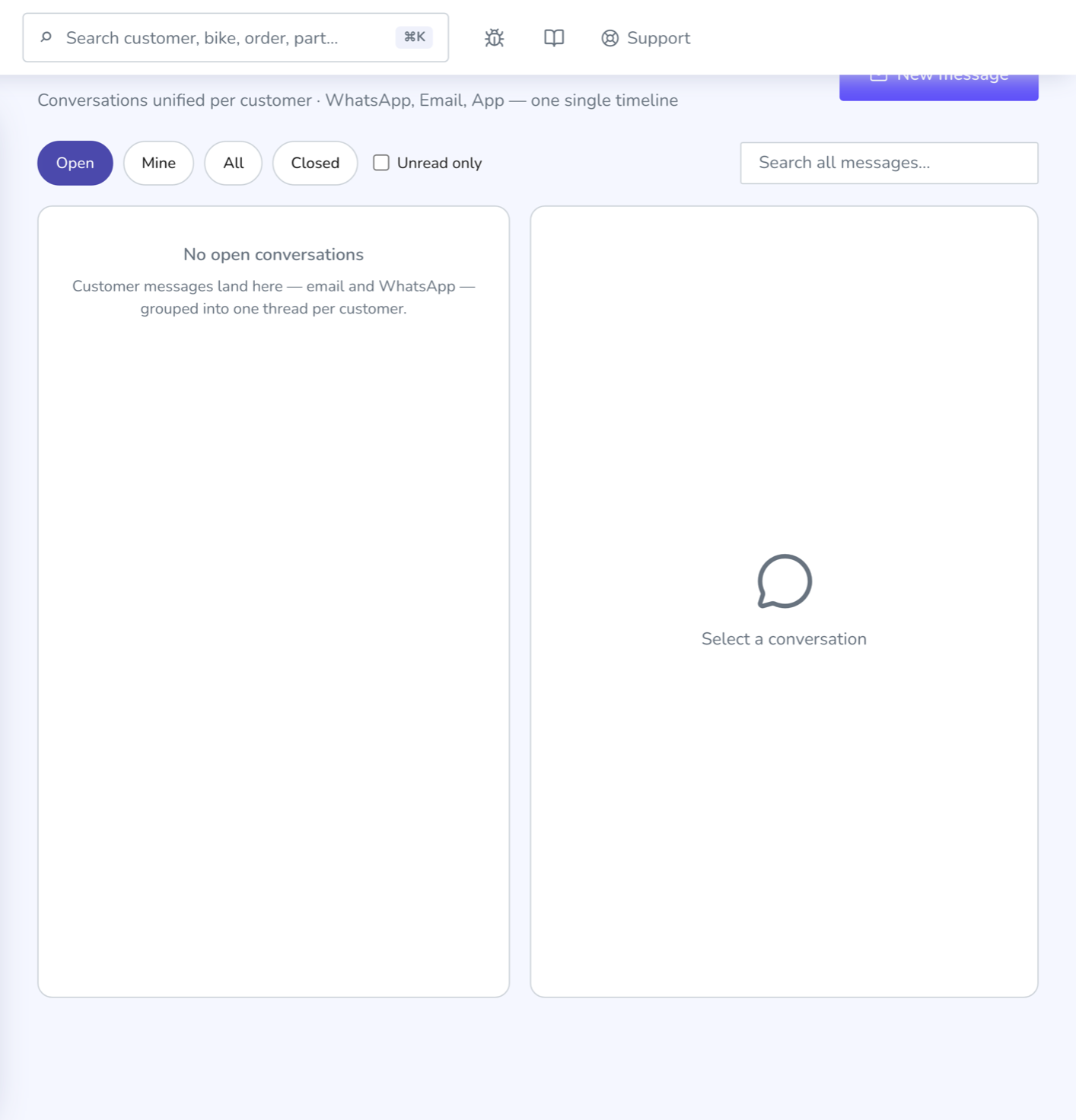
Pinned at the top of the list is CrankPal HQ: the conversation with our support team. It only appears once you have written to us at least once.
When you open a conversation, a context bar under the header shows that customer's open work orders and quotes: they are links, click one and you're on the order.
Inside the timeline you can tell at a glance:
- the channel of each message, with its coloured icon and, for emails, the subject;
- automatic messages (confirmations and notifications sent by the app), marked as such and slightly dimmed;
- quoted text in emails, folded behind a "show quoted text" link so the page stays short;
- attachments, downloadable;
- the delivery status of outgoing emails: sent, queued or failed.
Finding the right conversation#
At the top there are four filters — Open, Mine, All, Closed — each with a count. The Unread only checkbox narrows further, and the search box on the right searches inside the text of every message, not just names.
Each conversation has a status you control: Open, Waiting, Closed. Closing a conversation deletes nothing: it takes it out of the default view.
Three tools keep you on top of things:
- Assignment. The dropdown in the header hands the conversation to a member of staff. From then on they find it under Mine.
- Snooze. The Snooze button parks it until an hour from now, tomorrow morning or Monday morning. It comes back on its own; you can also pull it back into the open ones by hand.
- Labels. Add free-text labels (for example
warranty,sponsored,call back). Once created they stay in the suggestions and become a filter at the top of the page.
The assistant classifies conversations on its own with an intent (Quote, Booking, Job status, Complaint, Parts, Info) and an urgency level: those are the coloured pills next to the name. They're a hint for what to read first, not a decision — you can ignore them.
Replying#
The box at the bottom has two modes: Reply and Internal note.
In Reply mode, if the customer has written on several channels, a menu lets you choose which one to answer from; it defaults to the channel of the last real message. ⌘↵ sends without touching the mouse.
The Templates button opens your saved replies: text you write once and reuse. Inside a template you can put {nome} and {officina}, which are replaced with the customer's first name and your workshop's name when you insert it. From the same menu, Manage templates opens the window to create, edit and delete them.
Replies by email can carry attachments: use the paperclip button or drop the files onto the box. Ten at a time, 8 MB each. The other channels don't take attachments.
The New message button at the top starts a conversation from scratch: pick the customer, the channel and write.
Internal notes and teamwork#
Internal note mode writes a yellow message into the same timeline that the customer never sees. It's for the context you don't say out loud: "third time in for the same noise", "ask Luca before answering".
In notes you can tag a colleague by typing @ and the start of their name: a picker opens, and the person tagged gets notified.
When two people open the same conversation, a "… is viewing" notice appears at the top with your colleague's name. It's there so two of you don't answer the same customer.
From the header, if the conversation is linked to a customer, you can open their customer record or create a new work order without leaving the inbox.
The AI assistant#
Above the compose box there are two buttons Pro:
- Summarise reads the whole conversation and writes a summary in a panel above the messages. Handy when you pick up a long thread a colleague has been handling.
- Draft reply generates text and writes it into the reply box.
If your plan doesn't include the assistant, the two buttons stay visible but open a panel explaining what it unlocks.
Keyboard shortcuts#
They work when you're not typing in a text field.
| Key | What it does |
|---|---|
j / k | Next / previous conversation |
r | Jump to the reply box |
a | Jump to the assignment menu |
e | Close the conversation (or reopen it, if it was closed) |
⌘↵ | Send what you've written |
Common problems#
A customer's WhatsApp message never reached the inbox
Nearly always the channel isn't connected, or it has been switched off. Check its state in Integrations and channels: every channel has a status dot and, when it's red, the reason for the error.
I replied but the email shows as failed
Under the outgoing message there's a delivery status: hover it to read why. A wrong address on the customer record is the most common cause.
I can't find a conversation I'm sure I received
The default filter is Open: if someone closed or snoozed it, it won't show. Switch to All and use the search box, which looks inside message text.
I wrote an internal note — can the customer read it?
No. Internal notes stay in the app and are never sent on any channel. You can spot them by the yellow background and the Internal note label.
When a conversation turns into real work, the next step is usually a quote or a work order.