Daily use
Work orders
The whole life of a job — taking the bike in, picking it up, the work timer, labour and parts lines, approvals, telling the customer, taking payment and handover.
The work order is the heart of CrankPal: one bike, one customer, everything that was done to it. Everything that happens in the shop — who worked on it and for how long, which parts went in, what the customer said, what they paid — lives inside the order.
This page follows it in the real order you work it: the bike arrives, you take it in, you pick it up, you work on it, you tell the customer, you take the money, you hand it back.
The order list#
The list shows number, customer, bike, who it's assigned to, status, payment, last activity and total. Click a row to open the order.
Column headers are clickable: one click sorts the list by that column, a second click reverses the direction. Sorting applies to the whole archive, not just the page on screen; statuses follow the workflow (open, in progress, awaiting parts, closed, invoiced, cancelled) and orders without a customer or without an assignee stay at the bottom either way. With nothing chosen, the most recent come first.
Three groups of filters, which combine:
- by assignment: All · Assigned to me · To assign;
- by document: All · Paid · To collect · Receipted · Invoiced · No document;
- by customer: All · With customer · No customer.
The status column also carries the flags that need an action: "n waiting for the customer" for lines sent for approval, "n extras to send" for those still sitting as drafts.
An order has six statuses: open, in progress, waiting for parts, done, invoiced, cancelled.
Taking the bike in: opening the order, check-in and loaner#
An order starts four ways: with New order (pick the customer and bike — lines are added afterwards, from the detail page), with New work order at the top of the bike page (customer and bike already chosen), by converting a quote, or with the New order button inside a conversation in the inbox. The bike page's Add to history button does not open an order: it logs work already done in the bike's service book.
The order without a customer#
The bike is on the stand and there's work to do: you record the customer when you need a person, not before. In the creation form, next to the customer field, there's Continue without a customer. It's the same principle as a counter sale, which has never asked for one.
Without a customer you can't pick a bike from your records — a bike on file belongs to somebody — so in its place you write a free-text label: "red Bianchi, lady from number 12". It shows where make and model normally sit, and it's enough to keep two bikes on the stand apart.
Everything internal to the workshop works:
- labour and part lines, ticking off, discount;
- timer, assignments, seeing which colleagues are on the order, notes and mentions;
- stock coming off;
- taking payment at the counter: contactless on the phone, a QR or payment link shown on screen, cash. Whoever is paying is standing in front of you, card in hand;
- an anonymous receipt, just like at the counter.
What does need a person, and therefore a customer:
- remote parts approval (you need a channel to ask on);
- check-in with a signature, and the customer-supplied parts waiver;
- the "bike is ready" message, and every other notification;
- sending the payment link over WhatsApp or email (showing it on screen works either way);
- the invoice, which by definition is made out to somebody.
On the order detail the no customer badge carries an Attach customer button: link one at any point and everything above unlocks. Keep one thing in mind: without a customer the job doesn't enter any bike's history or any customer record. For a dry run that's fine; for real work, the name pays off sooner or later.
Check-in#
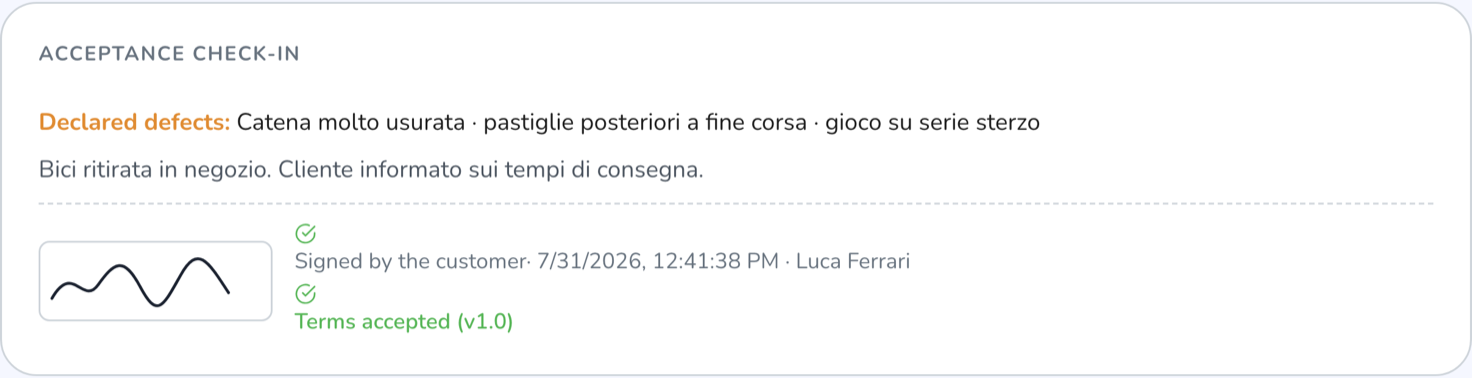
Before touching the bike, the Check-in panel collects up to four photos, pre-existing defects, acceptance notes, the maximum pre-authorised amount for extras and the customer's signature on the terms. If the order came from a quote, the panel also shows a summary of the quoted lines, so the customer signs knowing what they're approving. The full procedure is in Bookings and check-in. If you open an order that has no check-in yet, the app offers it on its own, even before the timer reminder: do it right away or postpone with Not now (the question won't come back for that order until you close the browser).
From the header you can print a QR label to hang on the bike; the QR is on screen too, and a colleague can point a phone at it to open the order straight away.
The loaner bike#
If you lend a bike out, the Loaner bike panel walks through the loan agreement in three steps: choosing an available bike and the expected return date, the ID document front and back (on a phone this opens the camera), then the loan terms and the customer's signature.
On saving, the PDF contract is sent to the customer by email and into their app. It stays viewable and printable from the order, and the Return button records the bike coming back while keeping the contract on file.
Picking up the job and timing the work#
The bar under the header says who the order is assigned to. If it's free, Take it assigns it to you; if it belongs to a colleague, Assign to me asks for confirmation before taking the job off them. Owners and managers — and whoever currently holds the order — can change the assignee or clear the assignment, with an optional reason. Every handover lands in the timeline with the name, time and reason.
The Time worked panel is the timer.
Start the timer
Start working opens a session in your name. When you open an order where you have no timer running, the app offers to start one — you can ignore it, and the owner can turn this reminder off entirely in the settings.
Clock in, if you haven't
If your timecard shows you as off shift, a window tells you and, with one click, clocks you in and starts the timer.
One timer at a time
If you already have a timer running on another order, CrankPal shows it to you with the time accrued and asks for confirmation: carrying on stops that one — the session is saved — and starts a new one here.
Stop it and say what you did
Stop timer opens a window with the session length and a field to describe the work done. That text stays in the session history: it's the workshop's memory, and it's what saves you when the customer calls back in two months.
The panel totals the time per person and shows in green the timers running right now, including your colleagues', and in yellow the ones running longer than expected. Whoever opened a session, and the owner, can delete it. Owners and managers can stop a colleague's forgotten timer with Stop, choosing the end time (the suggestion is their last clock-out, otherwise now): who stopped it stays on record.
A forgotten timer no longer runs for days. When it passes the threshold — the end of your shift that day, if there's a shift on the schedule, otherwise 4 hours after it started — the pill at the top turns yellow and, if you've turned on browser notifications, you get an alert; stopping it late, you can say when you actually stopped. Logging out of the app also asks whether to stop it. If it's still running at the end of the day, CrankPal closes it on its own with the time of your last clock-out or, if there isn't one, the workshop's closing time: in the timeline the session stays Closed automatically · to review until whoever started it, an owner or a manager confirms it with Looks right or fixes its time.
Labour, parts and discounts#
The Add lines button opens the window where the bill is built. Each line is either Labour or a Part, with a quantity and a unit price, and you add as many as you need in one go.
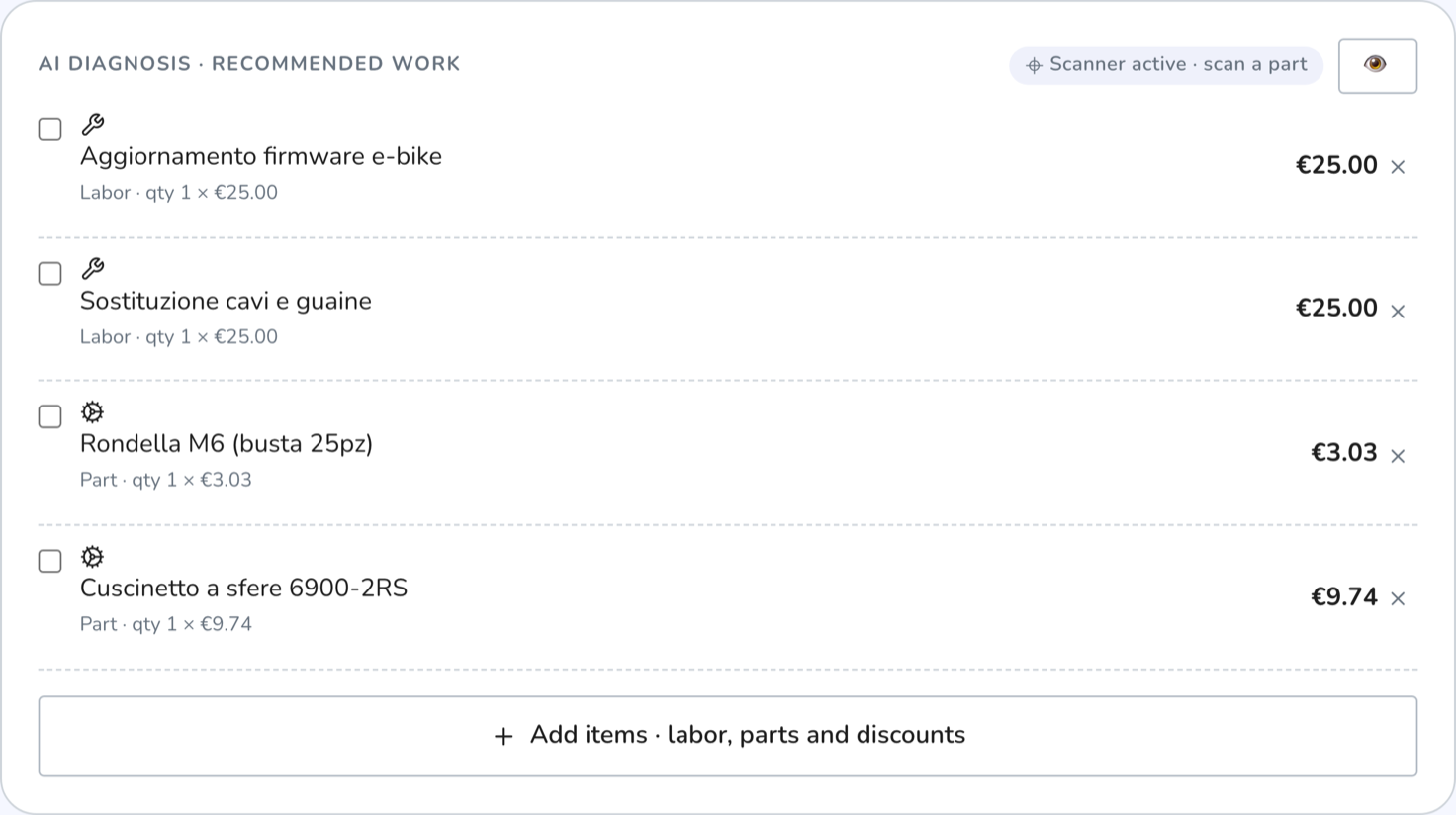
- On labour lines the field suggests entries from your service catalog and fills the price in for you.
- On part lines the field searches your stock by name or code and shows quantity on hand and price. The part comes off stock when the line is approved.
- If the customer brings their own part, tick Customer-supplied on the part line: the part stays documented on the order, the report and the invoice with a dedicated note, but at zero price — only labour is billed — and stock is untouched. When the order contains customer parts, check-in also collects the signature on the customer-supplied parts waiver (standard text included, customisable in SettingsWorkshop); the signed text stays attached to the check-in.
- The discount applies to the whole order, as a percentage or a fixed amount, and can be changed later from the summary.
The barcode scanner works without pressing anything:
- with the order open, scanning a part ticks the matching line as done — one unit at a time, and if the line covers several the app splits it into "done" and "to do". If that part isn't among the lines, it asks whether to add it;
- inside the Add lines window, scanning adds the part to the list or increases its quantity.
Codes that carry a serial number are recognised: the number stays on the line, which is what you want for warranties and traceable components.
The Summary panel keeps the accounts: parts, labour, discount, customer total and — once you've taken any money — what's been collected, with each deposit and balance payment (type, method and date), and the balance remaining. The 👁 button shows purchase cost and margin on parts: it's a single switch for the whole app, so turn it off when the screen faces the customer.
The Expected return field is visible to the customer in their portal: keep it up to date and half the phone calls disappear.
Record payment records money taken on the order (cash, card, transfer or payment link). Once the work is done the window offers the balance that's left; while the order is still open you record a deposit, which can't exceed the outstanding balance. The balance counts every payment already recorded, balance payments included: on an order that's already paid in full the window lists the payments instead of asking for another one. Every payment shows up in the summary and in the timeline.
Extras that need approval#
If the order has an agreed baseline — it came from a quote, or it has a check-in with signed terms — lines added afterwards stay out of the total. They sit marked Extra · to send until you press Send request to customer: one single request for all draft lines, not one per part.
Below the agreed threshold approval is automatic and the customer only gets a notification. Above the threshold the request goes to the customer and the lines stay pending: they don't count towards the total, can't be ticked and don't come off stock. The whole mechanism, thresholds included, is in Parts approvals.
Keeping the team and the customer informed#
The Activity panel is the order's full story in time order: internal notes, work sessions, assignments, lines added, completed or deleted, customer messages, deposits, receipts, invoices and payments.

At the top is the internal note field. Type @ and the start of a name to tag a colleague: they get notified and the name stays highlighted in the note. ⌘↵ posts it. Notes never leave the workshop: the customer doesn't see them.
The note that is for the customer lives in the customer card, below the expected return date: it is why the work is needed, written for the person who brings the bike in, not for colleagues. The customer reads it in the customer area, in the app and at the bottom of the order report, including the email you send it with. You can write it when you create the order; if the order comes from a quote, it starts out with the quote's notes. Save it with the button or with ⌘↵. It is the only note on the order that leaves the workshop: the ones under Activity stay internal.
Customer messages appear in the same timeline, with the channel they arrived on and a reply in inbox link that opens the conversation on exactly that message.
If a colleague changes the same order while you have it open, you hear a beep, the page refreshes itself and a notice tells you who did what. At the top you see the avatars of whoever else is looking at the order right now: click one to message them in chat.
Closing, taking payment and handover#
When you tick the last approved line, the order moves to done by itself and the end-of-work summary opens. From there, on one screen:
Check the summary
Labour, parts, discount, customer total and — if there are any — what's been collected and the balance left to collect.
Tell the customer the bike is ready
Notify customer sends the message on WhatsApp if you have their number, otherwise into the app. Customise lets you rewrite the text before it goes. The message is tracked in the inbox like every other one.
If the customer has a courtesy bike on loan, the message reminds them to bring it back. When days go by and nobody shows up, the same panel offers Send a pickup reminder: a message with the days waiting and, if they signed the storage clause at check-in, the amount accrued so far.
Create a reminder, if useful
A reminder linked to the customer and the order, with an optional due date, visible to you alone or to the whole team — and, if you want, notifying the customer when it comes due. Handy for calling them back for the next service.
Choose the next step
Wait for pickup leaves the order closed pending the customer, and is the recommended option. Alternatively issue a receipt or an invoice right away, or reassign the order to a colleague for the last mile.
Returning the bike to the customer#
When the customer comes to collect the bike, the check-in panel shows a Return to the customer section with the Record the return button: it only appears on orders that already have a check-in, because comparing how the bike arrived with how it leaves is what gives it meaning. Photograph the bike (up to four shots), add any notes and have the customer sign the pickup confirmation: they declare they collected it in the photographed condition, with the order's work explained and replaced parts shown on request. The signed text stays attached to the order, like the check-in one. The return is a fact about the bike, not about the order: it doesn't close it and doesn't collect any payment — those remain the steps above. If you record it on an order that is still open (the customer takes the bike back before the work is finished), the app points that out.
How you take payment depends on the plan. On the Free plan there are no electronic fiscal documents: the button is Take cash, which records the payment and closes the order, and you can print the PDF report as a receipt. On the plans that include them, Close and receipt issues the commercial document — the usual one for a private customer — and Close and invoice issues the invoice. Issuing is reserved to owners and managers. The fiscal detail is in Invoices and receipts.
An order without a customer closes and takes payment like any other: cash, contactless, a QR on screen, and the receipt comes out anonymous. The only closed road is the invoice, which needs somebody to be made out to: if that's what you need, attach the customer first with Attach customer.
The Payment and fiscal document panel then gathers everything about the money: the document issued and its transmission status, amount, method, operator, payments recorded, card payments taken and the state of any payment link. From there you download the PDF or resend it to the customer.
At any time, from the header, PDF report downloads the order's write-up and Send report emails it to the customer as an attachment.
Common problems#
I added a line but the total didn't change
The line is waiting for approval or still a draft: unapproved lines stay out of the total by design. Send the request to the customer, or check its state in Parts approvals.
I can't tick a line off
Two cases: the line is waiting for the customer's approval — or has been rejected — or the order already has a fiscal document issued and is locked.
A colleague's timer ran all night
It no longer runs for days: at the end of the day CrankPal closes it on its own with the time of their last clock-out, or the closing time, and marks it to review in the order's timeline, where it can be confirmed or its time fixed. Before then, owners and managers can stop it with Stop in the Time worked panel, choosing the end time.
Stock didn't come down
Stock moves when the line is approved, not when you write it: for extras waiting on the customer it happens at approval. Also check the part was picked from stock rather than typed by hand — only the first is linked to a stock item.
I can't see the invoice button
Issuing fiscal documents is reserved to owners and managers, and electronic documents depend on the plan. Check permissions and features by plan.
On an order without a customer I can't notify or ask for approval
That's by design: those actions need somebody to write to. Press Attach customer on the order detail — link one or create them with a first and last name — and they all unlock together, including for work already done.