Daily use
Parts approvals
The "can I replace this too?" without phone calls — how you ask the customer to approve extra work, when it happens automatically, and how to read the queue.
It happens halfway through a job: you open the cover and find the chain is finished too. The question is always the same — do I replace it or do I call? — and the answer usually costs a phone call, a text and half an hour of a bike going nowhere.
Parts approvals take that loop out. The request goes out from the order, reaches the customer on the channel they use, and their answer comes back into the order by itself. Below a figure the two of you agreed, the question isn't even asked: the work is already authorised.
How a request is created#
Not every order needs approvals. The mechanism only switches on if the order has an agreed baseline, which means one of two things:
- it came from an accepted quote that was converted;
- it has a check-in with terms signed by the customer.
In that case every line added afterwards is an extra: it stays marked Extra · to send and does not go into the total.
Add all the lines you need
Labour and parts are added from the order as usual. They stay as drafts: nobody outside the workshop has seen them yet.
Send one single request
Above the draft lines an orange bar shows how many there are and what they come to, with a Send request to customer button. One request goes out covering all of them — not one per part.
The customer decides from their portal
They get the message on the channel they use and approve or reject from the customer portal. Nothing to install, no need to call you back.
The answer comes back into the order
Approved: the lines join the total, become tickable and come off stock. Rejected: they stay struck through and out of the bill.
If the order has no agreed baseline — a quick job, no quote and no check-in — lines go straight into the total and pass through no approval at all. That's the difference between "this is what we said" and "let's see what it needs".
The auto-approval threshold#
Below a certain figure, asking permission is pure friction: nobody wants to be disturbed over a few euros of sealant. That's what the auto-approval threshold is for.
If the net value of the extras falls below the threshold, the request approves itself: the lines join the total and the customer gets only a notification, not a question. Above the threshold, it's their call.
The threshold that applies is, in order:
- the one agreed at check-in and signed by the customer, if there is one: it always wins, because it's what you settled for that bike;
- otherwise your workshop's default, set in Workshop profile; out of the box it's thirty euros.
In the Add lines window, as you type, the app already tells you which of the two cases you're in: a green panel if you'll stay under the threshold, an orange one if you'll go over — with the exact amount and a count of the draft lines already there, which add up.
The approvals queue#
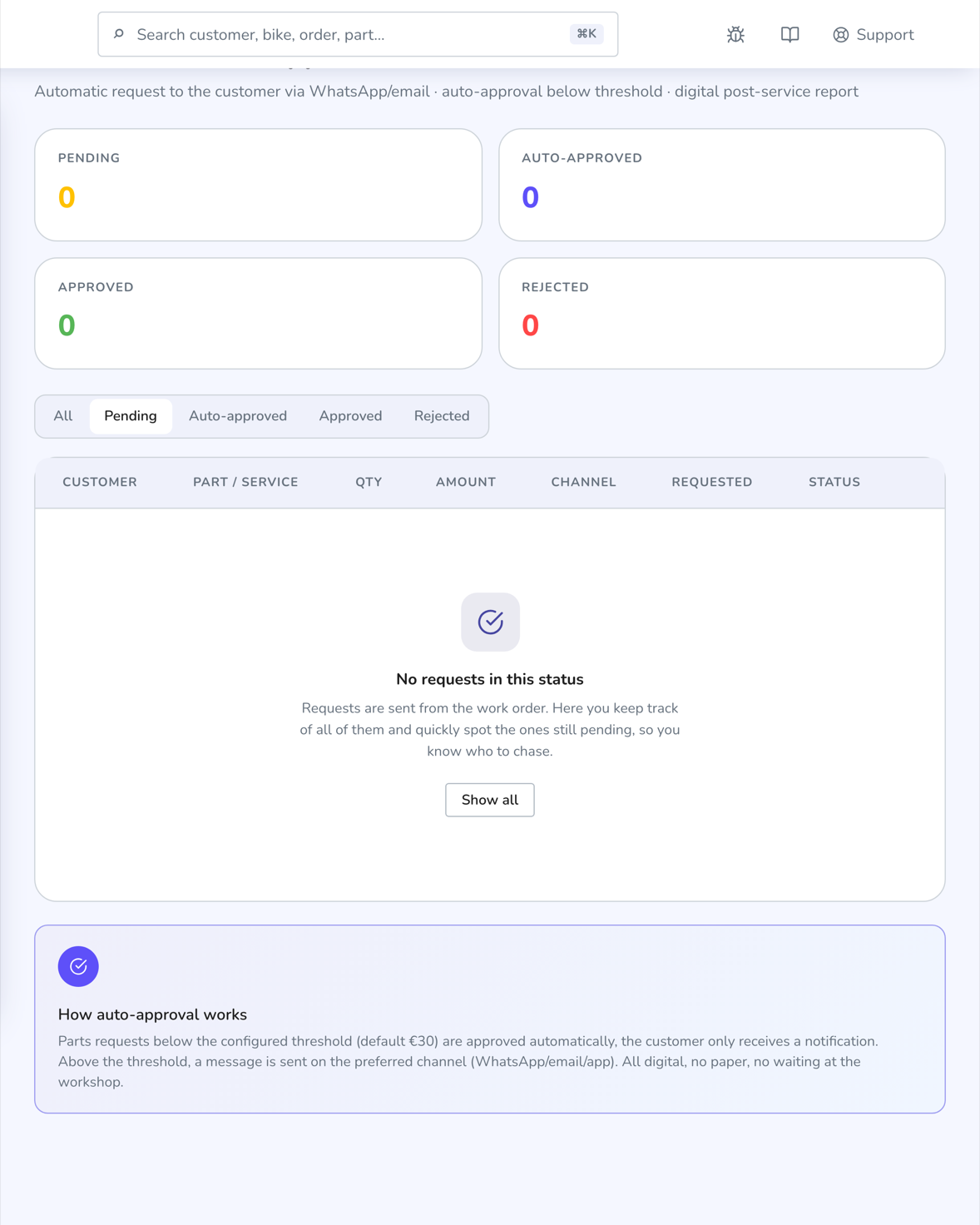
The Approvals page is the queue of every request. Four counters at the top — Pending, Auto-approved, Approved, Rejected — double as the filters.
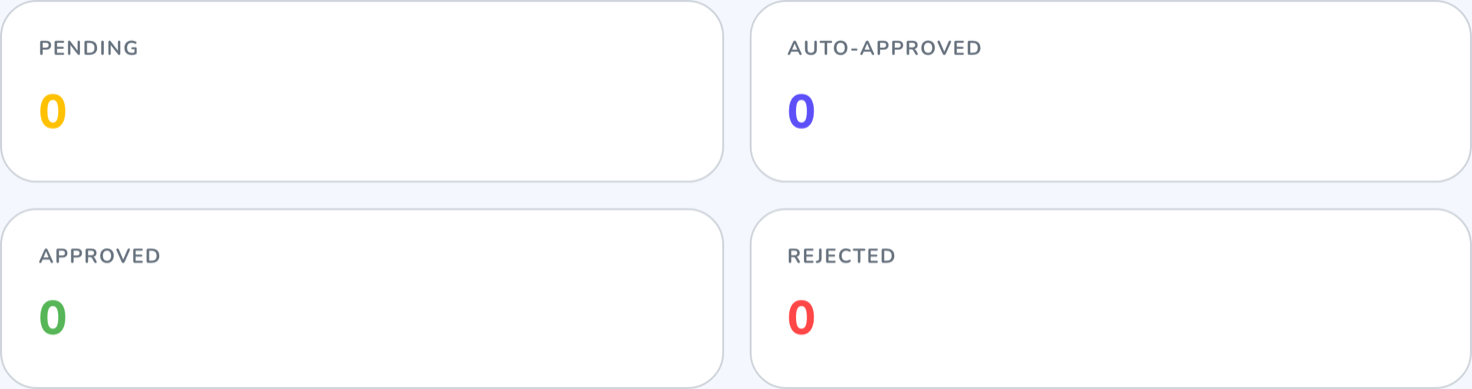
Each row gives the customer, the part or job with its reason, quantity, amount, the channel the request went out on, when it was made and how it ended. On decided rows you also see who decided: if the answer came from the customer you can tell from the channel, and if somebody in the workshop recorded it, their name and photo appear. Auto-approved rows carry an automatic approval label with the threshold that was applied.
Rows still pending have two buttons, Approve and Reject: use them when the customer answers you in person or on the phone and you're the one recording their decision. In that case it stays on record that you took it, not them.
The pending counter is also the badge next to Approvals in the left menu, and one of the tiles on the dashboard.
What happens when the customer decides#
On approval three things fire together, at the same instant:
- the lines become approved and join the order total;
- parts linked to a stock item come off stock;
- the order total is recalculated.
On rejection the lines stay on the order but struck through and out of the bill: they can't be ticked and they don't touch stock. They stay there on purpose — they're the documented proof that the work was offered and turned down.
There is one shortcut, to be used with your head switched on. In the Add lines window, when you go over the threshold, you can tick auto-approve without notifying the customer: it's there for when you've swapped a component for an equivalent one and a phone call adds nothing. A reason is mandatory.
Common problems#
I added a part but it isn't in the total
It's a draft or pending: unapproved lines don't count towards the total. Look at the orange bar above the lines on the work order and send the request.
The lines I add never ask for approval
The order has no agreed baseline: no converted quote and no check-in with signed terms. Do the check-in when you take the bike in and from then on the mechanism is live.
The customer never got the request
Check you have a channel connected and a valid contact on the customer record: with no phone number or email all they get is the in-app notification, which they see next time they log in. Channel status is in Integrations and channels.
I rejected a request by mistake
A decision can't be undone. Delete the rejected lines from the order and add them again: a fresh request will go out.
I want a higher threshold for one customer only
That's what check-in is for: the amount you agree and have signed applies to that order and beats your workshop default.
The rest of the journey — ticking the work off, telling the customer, taking payment — is in Work orders.