Daily use
CrankPal Tag
What CrankPal Tags are, how to request them, bind them to a bike and say where you stuck them, and what happens when someone scans their QR code.
A CrankPal Tag is a sticker with a QR code that you put on the frame. Once bound, it ties that bike to its CrankPal record for good: whoever scans it lands in the right place. You and your mechanics open the work order or the bike record without searching for it, and the rider lands on your workshop's customer portal.
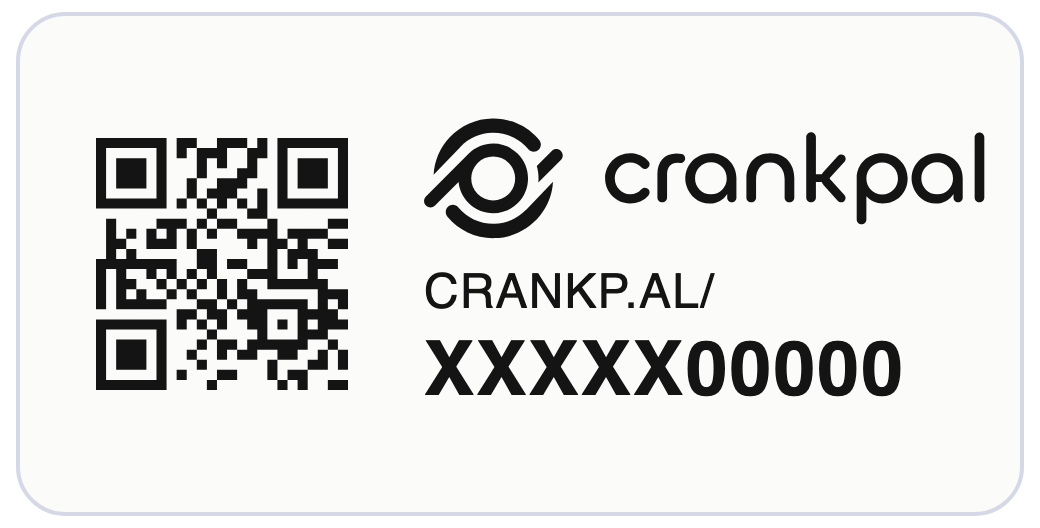
The card sits at the top of the Components tab on the bike page and is called CrankPal Tag. If the bike already has tags, the card shows their design with the real QR code and code; if it has none, it shows a sample label.
Requesting tags#
Next to the card title there's a ?: it opens an explanation of what the tags are, with a true-to-scale label, and the Get 200 free CrankPal Tags button.
Open the explanation
On any bike page, Components tab, press the ? next to CrankPal Tag.
Check the shipping details
Press Get 200 free CrankPal Tags. The workshop name, your name, the shipping address and the phone number are already filled in: check them and correct them if needed. The phone number is for the courier.
Confirm
Press Ship my tags. CrankPal prepares the shipment of 200 tags and sends it free of charge to the address you gave.
Until a tag is on a bike, any workshop can use it: if a colleague hands you a few, they work at your shop too.
Binding a tag to a bike#
Stick the tag on the frame, then bind it from the card. There are three ways:
- Scan: on touch devices (tablet, phone) it opens the camera and reads the QR code.
- Pair with your phone: from a computer it shows a QR code to scan with your phone, which opens a page where you read the tag with the camera. That QR code is valid for 10 minutes, for one tag and one bike only: for another tag, generate a new one.
- By typing the code: every tag has a 10-character code printed under the QR code. Type it in the Tag code field and press Bind. This also works when the QR code is damaged.
The tag is bound straight away. If the code is already bound to another bike, the app tells you and doesn't overwrite anything.
Where you stuck it#
Right after binding, the app asks where you stuck the tag: Top tube, Down tube, Seat tube, Head tube, Bottom bracket shell, Chainstay, Seatstay, Fork, Seatpost, Handlebar or Other.
It's for whoever looks for it later: a colleague, the rider, you in a year's time. If you don't want to answer now, press Later, and the tag's row will offer Say where.
On each tag's row you also see who bound it, with date and time. If it was someone at your workshop you see their avatar and name; if it was another workshop you only read linked by another workshop.
A tag is for good#
A bound tag belongs to that bike for good: it can't be unlinked or moved to another bike. That's what makes it reliable: whoever scans it in five years still reaches the same bike.
If you put it on the wrong bike, or the sticker got damaged, add a new one: a bike can have more than one tag. The app asks you to confirm, and the old one keeps leading to the same bike.
If a bike is deleted, its tags are retired: they don't become free again and can't be put on another bike, because the sticker may still be on the frame.
What happens when someone scans the QR code#
The QR code leads to an address like crankp.al/CODE. What opens depends on who scans it:
- A mechanic from your workshop already logged in to the app on that phone or browser: the bike's work order opens if there's one waiting to start or in progress, otherwise the bike page.
- A mechanic from another workshop, already logged in to their own app: if the rider has added that workshop too, the bike page opens; otherwise the app says so and offers Invite the rider. The rider gets the request as a notification in the CrankPal app and/or by email; if they accept, the bike page opens for that workshop too. Inviting requires the manage_customers permission.
- The rider, or anyone else: lands on the customer portal of the workshop that looks after the bike, which asks whether they're a rider or a mechanic. A mechanic is taken to a page that explains CrankPal and CrankPal Tags.
- A tag that isn't bound yet leads to the CrankPal website.
What the tag is like#
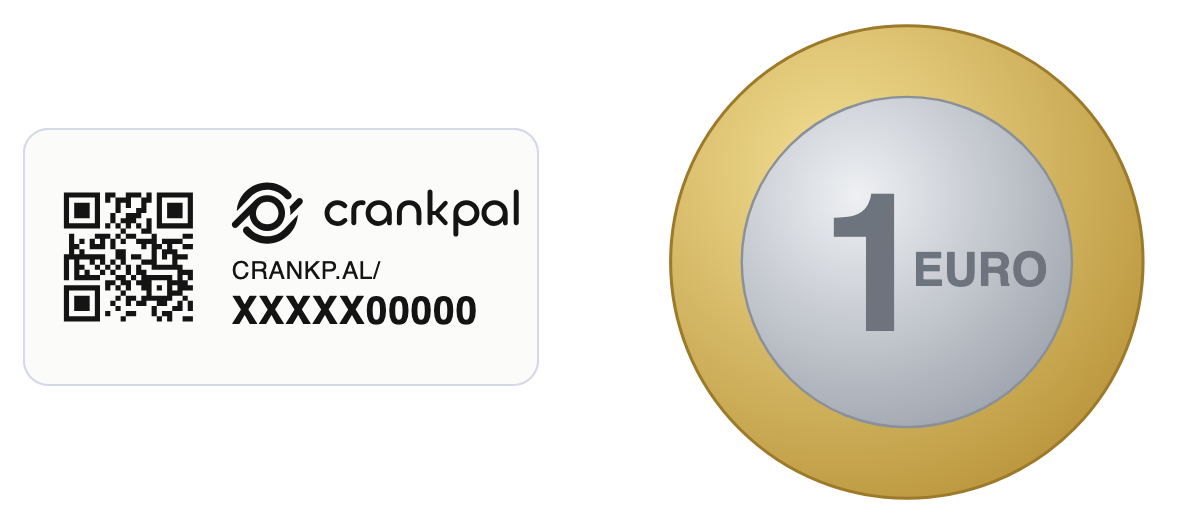
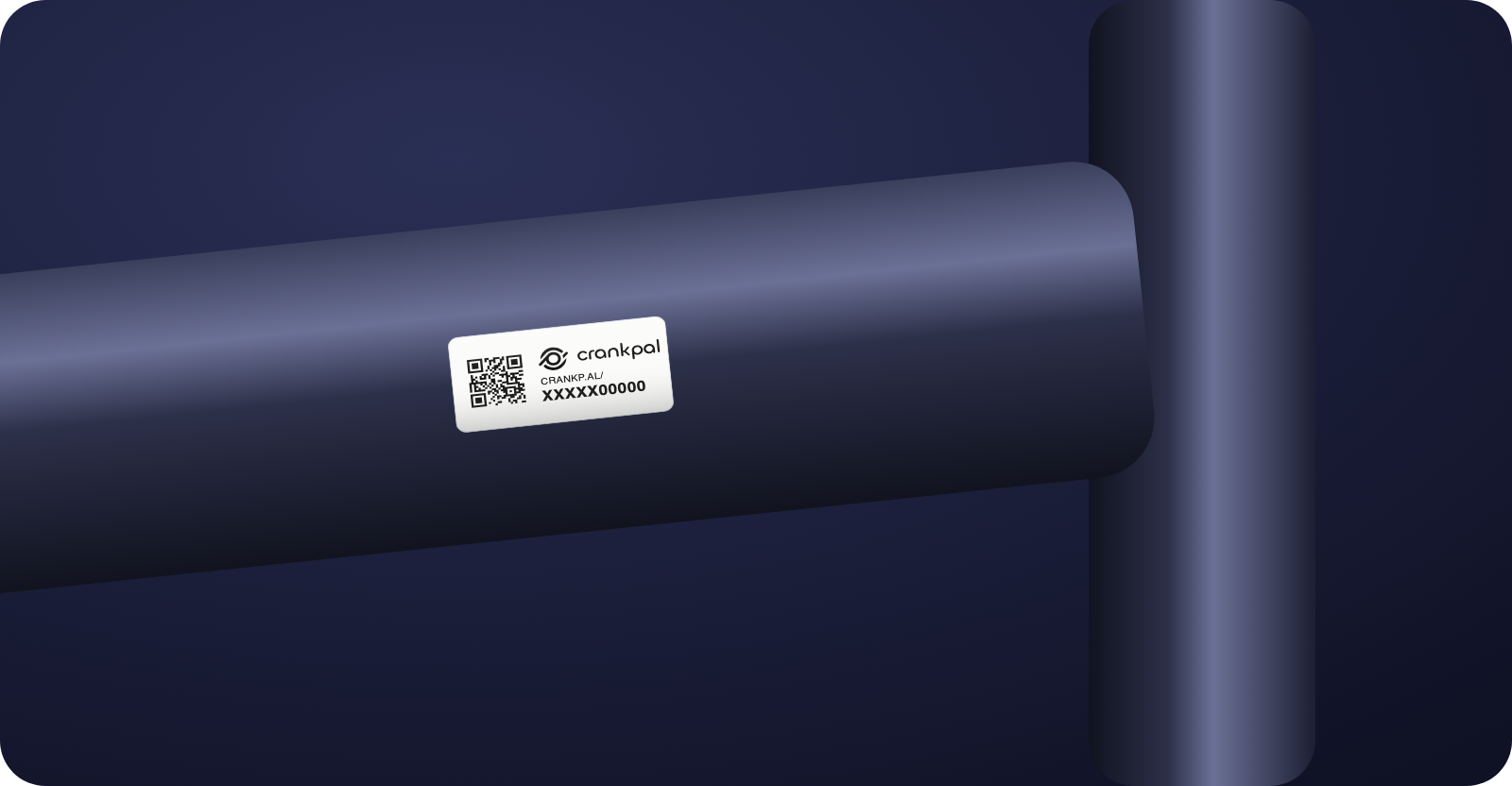
- It measures 25.4 × 12.7 mm: it fits on the top tube, the seat tube or a stay.
- It's glossy white polyester, with resin printing and a permanent adhesive.
- It stands up to water, sun, oils and solvents, from −40 to +160 °C. It can be applied from 0 °C upwards: in winter, in a cold workshop, warm the tube first.
- Under the QR code there's the 10-character code, which you can type if the QR code gets damaged.
Some workshops also have self-printing enabled: from the card, Print tags generates the codes and downloads an A4 sheet to print on adhesive paper, within a monthly limit. It's a temporary solution, meant for workshops that haven't received CrankPal's tags yet.
Common problems#
The app says the tag is already bound to another bike
That code is already on another bike and can't be moved. Use another tag. If the sticker is on the wrong bike, peel it off: the new tag binds to the bike in front of you.
The “Pair with your phone” QR code no longer works
It's valid for 10 minutes and one tag. Generate a new one from the card.
The QR code is damaged
Type the code printed under the QR code in the Tag code field. If the code can't be read either, stick a new tag on and bind it: the bike can have more than one.
I scan the tag and the customer portal opens instead of the app
The phone or browser you're scanning with isn't logged in to your workshop's app. Log in from that device and scan again.