Daily use
Counter sales and POS
The quick till for accessories and parts sold over the counter: basket, barcode scanning, cash, card or contactless payment, the customer's document, and automatic stock deduction.
Counter sales are for the customer who walks in, picks up an inner tube or a pair of gloves, and pays. No work order, no quote: basket, payment, document, stock deducted. Thirty seconds.
You'll find it under WorkshopCounter sale. If you have digital payments enabled the entry reads Till & POS. It needs Premium and the manage_pos permission.
Ringing up a sale#
The screen is split in two: items on the left, basket on the right.
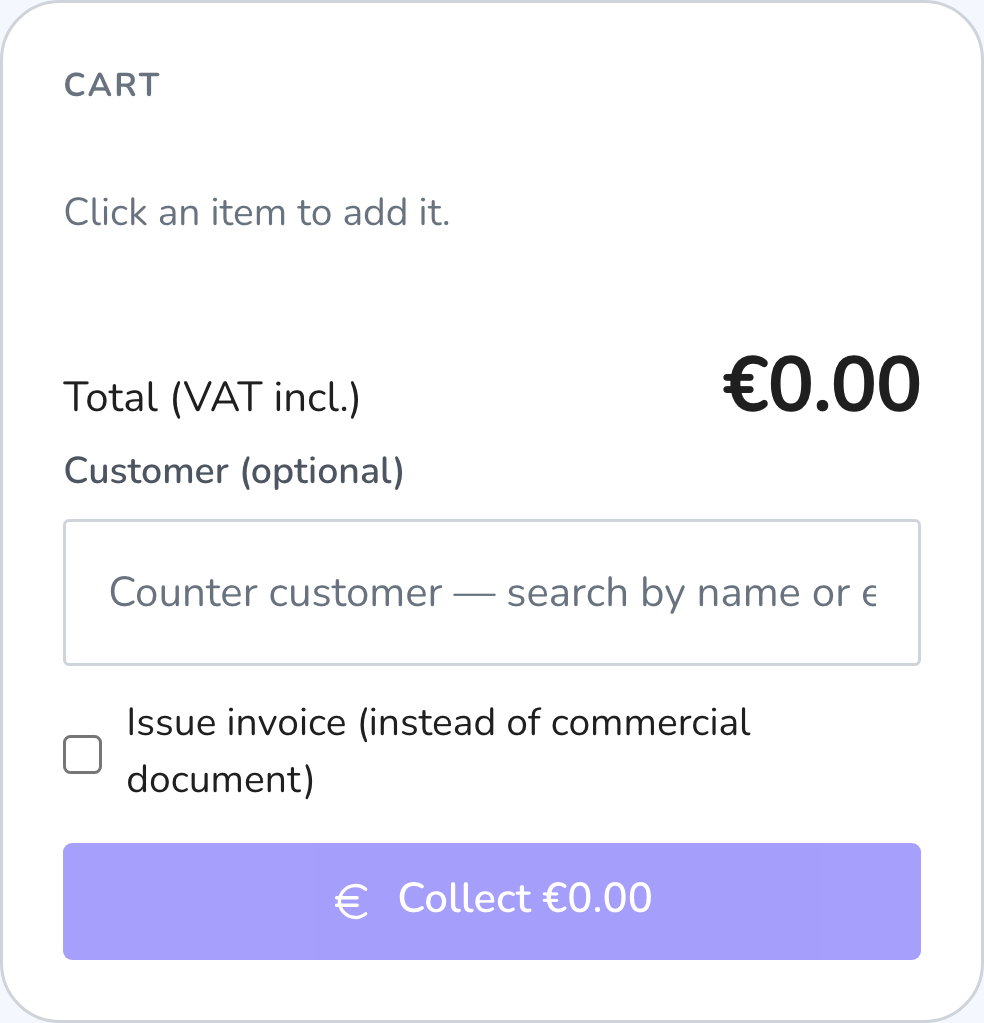
Add the items
Search by name, SKU or category and click the row, or pass the barcode under the scanner. Each row shows the price and how many pieces you have; sold-out items can't be clicked.
Adjust the quantities
With the − and + buttons in the basket. Quantity can't go above the pieces available at the location you're selling from.
Apply a discount, if you need one
+ Apply discount takes either a percentage or an amount in euros. A discount can never exceed the subtotal.
Attach the customer, if you know them
The customer is optional: without one the sale stays under "Counter customer". But attaching them puts the sale in their history and lets you email them the document.
Take the payment
The button at the bottom shows the total including VAT. From there you choose the payment method.
The basket only accepts stock items: there are no free-text lines and you can't sell fractions of a piece. If something isn't in stock yet, add it first — see Inventory.
If you have more than one active location a Location selector appears: that's where the goods come off. Changing location trims or removes any line that exceeds the new location's stock.
A handheld scanner always works, without clicking into any field first. On a phone or tablet you can use the camera as a scanner: that needs a secure connection (https) and camera permission in the browser.
How to take the money#
On confirmation the method picker opens. Which methods you see depends on your plan.
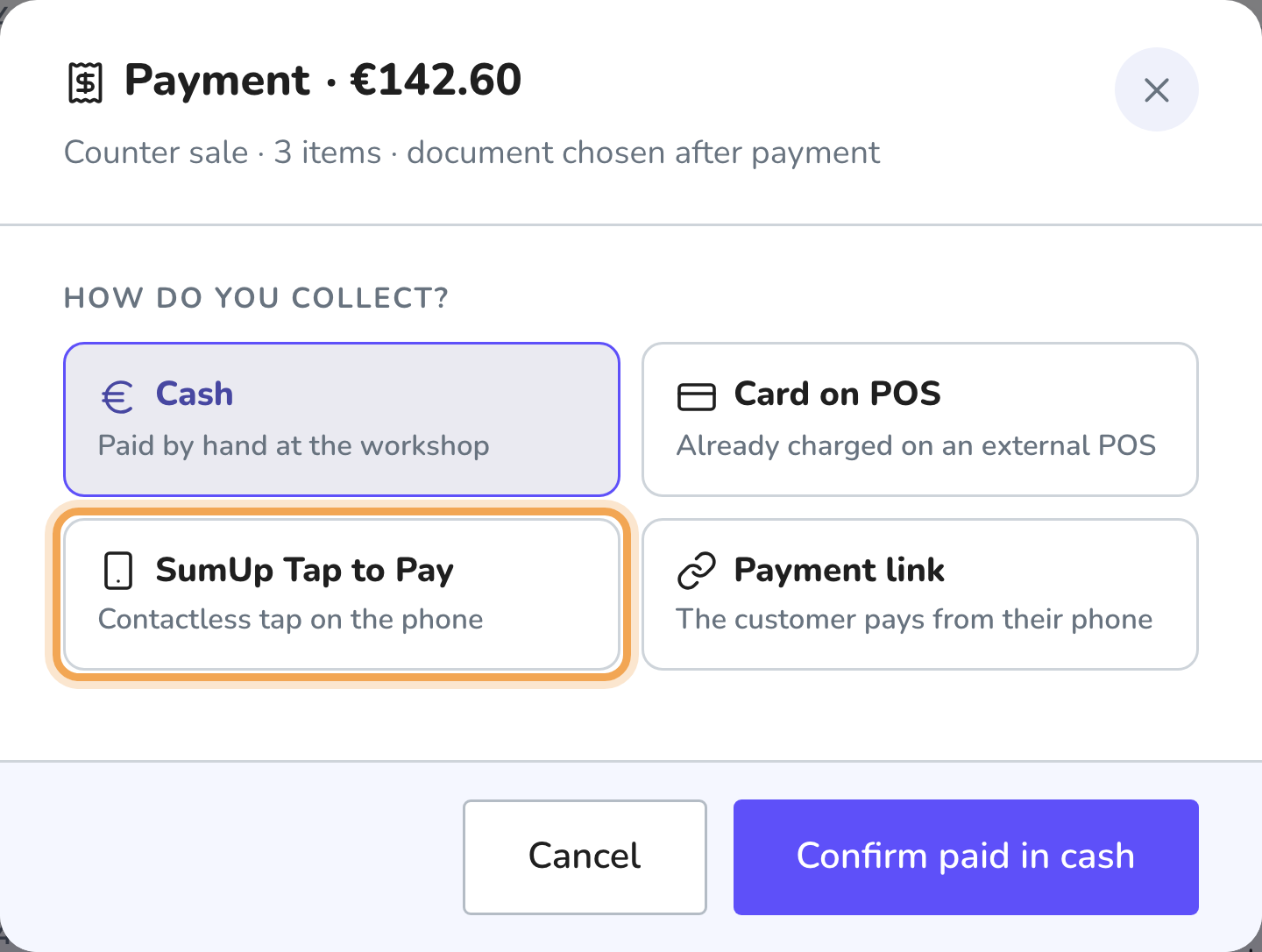
| Method | What it does | Plan |
|---|---|---|
| Cash | Money taken by hand, you just confirm | Premium |
| Card on POS | You already took it on an external card terminal; here you record it | Pro |
| SumUp Tap to Pay | Contactless tap straight on the phone | Pro |
| Payment link | The customer pays from their own phone | Pro |
Cash and card on POS record the sale immediately and deduct stock; you choose the document afterwards.
The payment link works the other way round: the basket is frozen with locked prices, but the sale only comes into existence when the payment lands. You get a QR code and an address to hand to the customer, and the screen waits. If you close the window while a link is pending, the link is cancelled and the customer can no longer pay it.
SumUp Tap to Pay opens the SumUp app on the phone for the contactless tap and comes back with the result. Set it up first in Fiscal receipts and payments: without your workshop's SumUp key the method won't start. With SumUp connected, every payment is checked against SumUp before it is recorded — amount included.
The customer's document#
Once payment is in, you choose what to give the customer. The options depend on what you have enabled.
With electronic invoicing or receipts active (Pro) you choose between Receipt and Invoice. The receipt can be paperless and emailed; the invoice is created already paid, with VAT extracted from the total.
Without those features you get the courtesy receipt: download it as a PDF, print it, or email it to the customer. It says so on the document itself — it has no fiscal value.
You can also tick Issue an invoice on the basket, before taking payment. A sale can be invoiced later too, from its detail page; the app never creates two invoices for the same sale, even if you try twice.
If the attached customer has incomplete billing details, the warning listing what's missing appears before you invoice. See Customers and Invoices and receipts.
Stock and availability#
Every sale takes the goods off the chosen location and leaves a tracked movement with the reason "sale". There is no way to sell without stock noticing.
Availability is measured at the location you're selling from, not across the whole workshop: the workshop total also counts frozen locations, and would have you promising parts you don't have at the counter.
If stock runs out during confirmation (because someone else sold the same part in the meantime), the whole sale is cancelled rather than half-completed. On already-paid methods — link and SumUp — the sale is recorded anyway, because the money has arrived: stock never goes below zero and the item shows up among those below their reorder point.
After each sale, if anything has dropped below its reorder point, you're told straight away.
The sales archive#
Sales archive lists every counter sale with number, date and time, who took the money, customer, number of items, method and total. Sales that have been invoiced carry a badge that jumps to the invoice.
A sale's detail shows the lines with SKU, quantity and prices, the subtotal, the discount and the total, plus the status of the commercial document.
Common problems#
The scanner reads but nothing is added
Either the code doesn't match any item ("Code not recognised") or the item is at zero ("Out of stock"). Assign the code to the item from Inventory, or restock.
The camera won't start on the tablet
It needs a secure connection (https) and camera permission in the browser. If you denied it once, you re-enable it from the browser settings, not from CrankPal.
I can't see SumUp or the payment link among the methods
Those are Pro plan features. On Premium you have cash, plus recording a payment already taken on an external card terminal.
The customer paid by link but the sale isn't there
The sale only comes into existence when the payment actually lands. While the screen is still waiting there is no sale, and closing the window cancels the link.