Reference
Permissions and roles
The complete list of CrankPal permissions, what each one allows, which ones come by default with each role, and how to grant one extra permission without changing someone's role.
Everyone who logs into the app has a role and a list of permissions. The role is a shortcut: when you create the user, the role decides which permissions they start with. From then on permissions are edited one by one, without touching the role.
You do this under SettingsUsers, and it needs the manage_users permission. The full procedure is in Users, roles and permissions.
How role, permissions and plan combine#
Three different things, in this order:
- The plan decides which modules exist for the workshop. If the plan doesn't include stock management, no permission will make it appear. See Features by plan.
- The role decides the person's starting permissions.
- Permissions decide what that person sees and can do inside the modules that are switched on.
A permission is not enough if the plan doesn't include the feature, and the plan is not enough if the person doesn't have the permission. When something isn't visible, always check both.
The permissions, one by one#
There are nineteen, in four groups. The technical name is the one you read next to the checkbox under SettingsUsers.
| Permission | What it allows | Group |
|---|---|---|
view_dashboard | See the workshop dashboard: today's jobs, queues, headline numbers. | core |
manage_bookings | Open, move and cancel appointments in the calendar. | core |
manage_route | Use the route planner: plan a mobile mechanic's round. | core |
manage_customers | Create and edit customer records and the bikes attached to them. | core |
manage_work_orders | Open work orders, add labour and parts lines, close them. | core |
manage_fittings | Record and edit bike fittings. | core |
send_messages | Write to the customer from the inbox, on any connected channel. | communication |
approve_parts | Handle parts approval requests sent to the customer. | communication |
send_reports | Send the customer the report for a job. | communication |
manage_inventory | Manage stock levels, goods-in, adjustments and transfers, and register the CrankPal sensors you sell. | operations |
manage_service_catalog | Edit the service catalog: entries, times, prices. | operations |
manage_claims | Handle claims and the paperwork attached to them. | operations |
view_reports | See the workshop's financial reports. | operations |
view_invoices | See the Invoices and receipts module. Read-only: issuing is what manage_pos is for. | operations |
manage_pos | Use counter sales, take digital payments and issue receipts. | operations |
manage_users | Create users, change their role, grant permissions. | admin |
manage_integrations | Connect and disconnect messaging channels. | admin |
manage_workshop | Edit the workshop details, checkout, portal and subscription. | admin |
view_team_monitor | Open the team monitor: who is working on what. | admin |
What each role gives#
These are the permissions a person receives when you create them, based on the role you pick. They are a starting point: you can add and remove afterwards.
| Permission | admin | manager | mechanic | bike_fitter | viewer |
|---|---|---|---|---|---|
view_dashboard | ✓ | ✓ | ✓ | ✓ | ✓ |
manage_bookings | ✓ | ✓ | ✓ | ✓ | — |
manage_route | ✓ | ✓ | ✓ | — | — |
manage_customers | ✓ | ✓ | ✓ | ✓ | — |
manage_work_orders | ✓ | ✓ | ✓ | — | — |
manage_fittings | ✓ | ✓ | ✓ | ✓ | — |
send_messages | ✓ | ✓ | ✓ | — | — |
approve_parts | ✓ | ✓ | ✓ | — | — |
send_reports | ✓ | ✓ | ✓ | — | — |
manage_inventory | ✓ | ✓ | ✓ | — | — |
manage_service_catalog | ✓ | ✓ | — | — | — |
manage_claims | ✓ | ✓ | — | — | — |
view_reports | ✓ | ✓ | — | — | ✓ |
view_invoices | ✓ | ✓ | — | — | — |
manage_pos | ✓ | ✓ | ✓ | — | — |
manage_users | ✓ | — | — | — | — |
manage_integrations | ✓ | — | — | — | — |
manage_workshop | ✓ | — | — | — | — |
view_team_monitor | ✓ | ✓ | — | — | — |
In short: the manager does everything except configure the workshop, but keeps the team monitor because it is a people-management tool they use daily. The mechanic starts with the checkout switched on (manage_pos), because whoever is at the counter usually needs to take money and issue receipts: that is the first box to untick if that isn't how your workshop works. The Invoices and receipts module, on the other hand, belongs to admins and managers, so a mechanic doesn't start with view_invoices. The bike fitter is a specialised role: fittings, customers and bookings, no work orders, stock or checkout. The viewer only looks.
Where you notice the difference#
A missing permission doesn't show a message: it makes the entry disappear from the menu. But it isn't only a menu matter — the permission is enforced on the server too: anyone reaching the page by direct address, or calling the API, is refused.
These are the entries that appear or vanish depending on the permission.
| If you're missing | This disappears |
|---|---|
view_invoices | The Invoices and receipts menu entry. |
manage_pos | The Counter sales entry (or Register & POS with the POS switched on), pay-by-link and the receipts register. |
manage_claims | The Claims entry. |
view_reports | The Reports entry. |
view_team_monitor | The Team monitor entry. |
manage_workshop | The Workshop, Checkout, Portal & widget, Your subscription, Refer a workshop and Pickup & Delivery tabs. |
manage_integrations | The Integrations tab. |
manage_service_catalog | The Service catalog tab, and edits to the catalog are refused. |
manage_users | The Users tab. |
The other permissions don't make a page disappear: they remove the ability to change what the page shows. Without them you can still look, but saving is refused.
| If you're missing | What gets refused |
|---|---|
manage_bookings | Creating, moving, reassigning or cancelling appointments. |
manage_customers | Creating and editing customers and bikes, importing records, resending the invite. |
manage_work_orders | Every change to an order: lines, time, status, notes, deposits, customer alerts. |
manage_inventory | Every stock movement, locations, suppliers, reorders, labels and the CrankPal sensors you sell. |
manage_route | Reordering the round, rescheduling and notifying customers from the route planner. |
send_messages | Replying from the inbox, opening a conversation, editing quick replies. |
approve_parts | Requesting and recording the customer's parts approval. |
send_reports | Generating and sending the branded report to the customer. |
manage_fittings | Edits to fittings. |
The Account and What's new tabs belong to everyone: the first holds personal settings (language, password), the second the product changelog.
Changing someone's permissions#
Open the user list
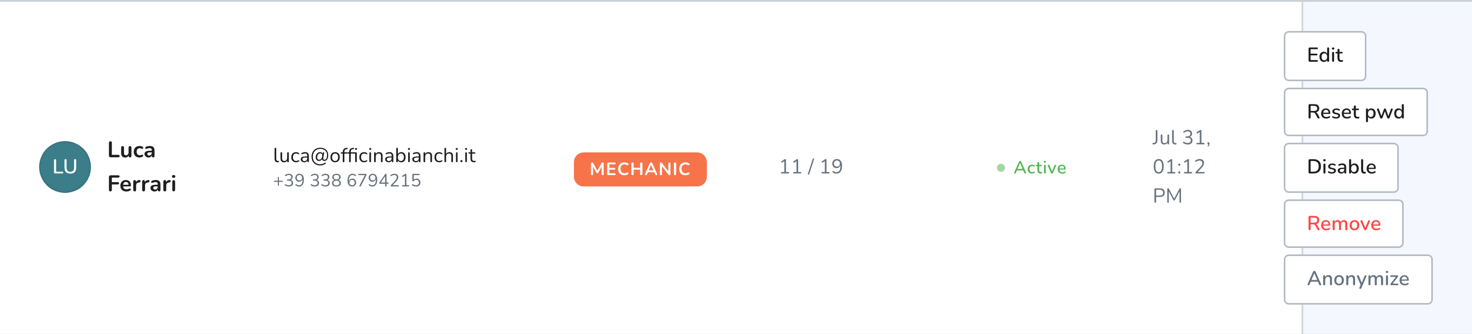
SettingsUsers. You see everyone in the workshop, with their role and whether they are active.
Pick the person and tick the boxes
Permissions are grouped the same way as in the table above. You can add a permission without promoting anyone: a mechanic who needs the team monitor gets
view_team_monitorand stays a mechanic.Save, and tell the person
The change takes effect the next time they load the page. If they are already working, ask them to reload: the menu is rebuilt on load.
Changing the role of an existing user does not recalculate the permissions you had customised for them: if you want to start again from that role's defaults, check the boxes one by one after the change.
Common problems#
I granted the permission but they still can't see the entry. Ask them to reload the page. If it's still missing afterwards, the problem is the plan: look the feature up in Features by plan.
They see the entry, but with a padlock. That's the plan, not the permission. A padlock is always and only a subscription question.
I want to remove a permission from an administrator. You can't: admin has everything by construction. Change their role to manager and add what they need.
A member of staff has left. Don't delete them: deactivate them under SettingsUsers. They can no longer log in, but the work they did stays correctly attributed in orders and reports.