Daily use
Dashboard
The screen you open first thing every morning — what the numbers at the top count, where they take you when you click them, and how to find anything in two seconds.
The dashboard is what you see the moment you log in. It isn't there for looking up history: it's there so that in five seconds you know what today needs and what got left behind.
Every number at the top is a link to the page where that work actually happens. If the "To assign" counter says 3, those three orders are two clicks away.
What you see when you log in#
At the top there's a greeting that changes with the time of day, today's date and, if there are any, how many bookings are scheduled for the day.
Below it, until the path is finished, sits the Finish setting up card, with a progress bar and the overall count ("3 of 7 completed").
The card shows three steps at a time: the last one done, the current one and the next. Underneath, a line tells you how many remain after those — the path carries on, but it isn't all put in front of you at once. The first steps are about your first job (quote, order, document), the rest about setting up the workshop; the full list is in First login.
Each step you haven't done yet is a link straight to the right screen. You can hide the card until your next login with the link on the right; when you reach the end it celebrates, disappears on its own and never comes back.
Top right there is the notifications bell: it keeps the live alerts, such as a quote accepted or sent back for changes, a customer message, a reply from support or one of your reports fixed, with the unread count, even after the pop-up in the bottom corner has gone. Clicking an entry opens the page it belongs to; "Mark all as read" clears the counter. The list is personal and stays on this browser.
The numbers at the top#
Eight tiles, each one a link.
| Tile | What it counts | Where it takes you |
|---|---|---|
| Today's bookings | Bookings dated today, in any status. Underneath, how many are on-site | Bookings |
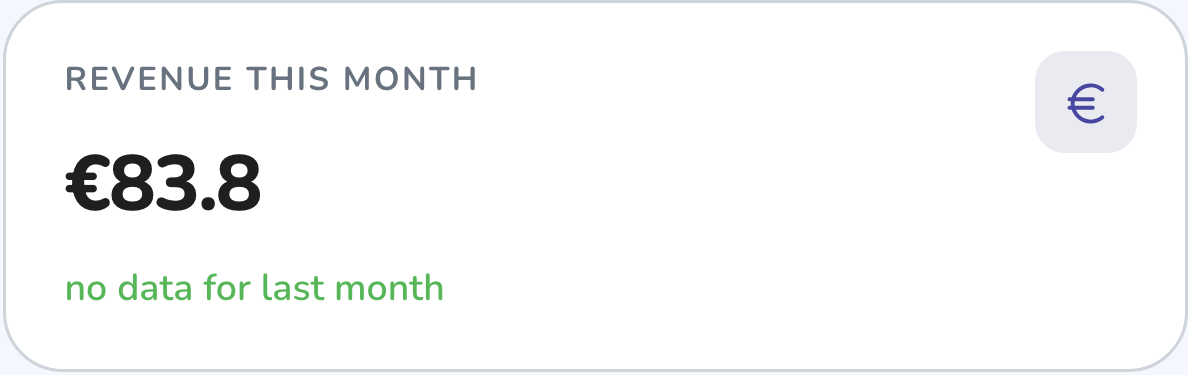
| Revenue this month | The sum of work orders completed or invoiced since the 1st of the month, plus counter sales. Below it you read the comparison with the same portion of last month | Reports |
| Inbox | Incoming messages not yet read, across every channel | Unified inbox |
| Approvals | Extra-line requests waiting for the customer's answer | Parts approvals |
| Open orders | Orders that are open, in progress or waiting for parts | Work orders |
| To assign | The same active orders, but with no mechanic on them | Work orders |
| To collect | Finished orders with neither a receipt nor an invoice issued | Work orders |
| Waiting for parts | Orders on hold until a part arrives | Work orders |
Chart, leads and today's bookings#
Below the tiles there are three blocks.
Weekly revenue shows the last seven days as bars, with the week's total in the top right. Each bar uses the same definition as the Revenue this month tile: work closed on that day plus counter sales. The tallest bar is highlighted; hover over one to read the day and the amount.
Predicted leads lists customers with a component near the end of its life, estimated from real wear taken from synced rides. Refresh recalculates, Contact opens the customer record. If none of your customers have synced rides the list stays empty: that's normal, not a fault.
Upcoming bookings is the table of today's appointments — time, customer, service, customer plan and status. See all opens the calendar.
The Free plan order cap#
On the Free plan there is a monthly cap on work orders. As you approach it an orange notice appears above the tiles, showing how many you have used and a button to change plan.
The cap does not apply to demo workshops and is not active in countries where paid plans aren't available yet: there, the notice never appears.
Searching everything with ⌘K#
Top right of the dashboard there's a ⌘K reminder. Press ⌘K (or Ctrl+K on Windows) from any page: the cursor jumps into the search bar at the top and search opens.
Type at least two characters and results appear grouped by type — customers, bikes, orders. Move with the arrow keys, open with Enter, close with Esc. It's the fastest way to reach an order when all you remember is the customer's surname.
Common problems#
The numbers don't match what I see on the pages
The tiles are calculated when the page loads and don't refresh by themselves. Reload the dashboard after working in another section.
The checklist has disappeared
It goes for good once you complete every step, and until your next login if you clicked Hide. There's no way to bring it back: the same things are done from Workshop profile and hours and the other setup pages.
The tiles look faded, as if they were disabled
They're only watermarked until you close your first work order: clicking them works all the same. Close that first order and the dashboard lights up — see Your first 15 minutes.
A member of staff clicks a tile and gets nowhere
The tiles are the same for everyone, but the pages they lead to can be hidden by that user's permissions or by the plan. Check permissions and features by plan.
From here work almost always goes one of two ways: the inbox, if there are messages waiting, or work orders, if there's a bike in the stand.