Daily use
Inventory
Items, stock levels and reorder points: adding a part by scanning it, following movements, handling stock across locations, printing shelf labels and repricing from online references.
Inventory keeps count of how many pieces you have and where they are. It isn't a list you fill in for the sake of it: it is what lets counter sales deduct stock by themselves, work orders know whether the part is in, and reordering start before you run out.
You'll find it under StockInventory. It needs Premium.
What the list shows#
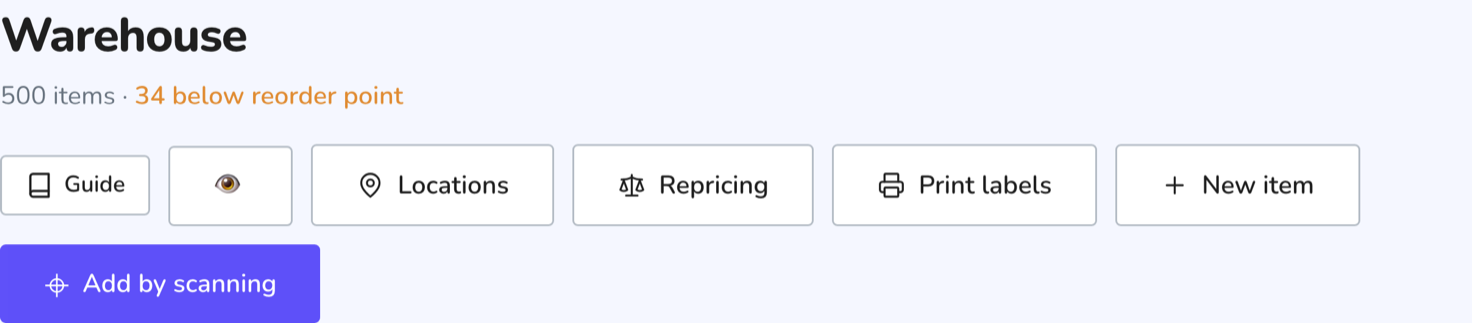
At the top, how many items you have and how many are below their reorder point. You search by name, SKU or category; the filter has just two positions, All and To reorder.
The columns are SKU, item, category, barcode, stock, sale price and the online price reference. The cost toggle also shows purchase cost: keep it off when there's a customer at the counter looking at your screen.
The stock cell opens: click it and you see how many pieces are at each location, with the location's own threshold if you set one. Locations beyond your plan's limit stay visible marked "frozen" — the goods aren't lost, that station simply can't sell until you upgrade or drain it.
Each row has Transfer, Movements and Label, plus a Reorder flag if the part is below its threshold. Clicking the row opens the item for editing.
Adding an item#
Two routes. New item starts with a search: type a name, SKU, manufacturer code or barcode and CrankPal looks first among your own items, then in the universal catalogue. If the part is already on file it says so and takes you there, rather than letting you create a second one; if it's in the catalogue you pick it and the form arrives already filled in — name, category, barcode, suggested price with where it came from — and the item stays linked to the catalogue, which is what later makes the price reference, counter scanning and "to order" work. If it's nowhere to be found, Fill in manually opens the same form as always: SKU and name required, then category, barcode, supplier, opening stock, reorder point, sale price and purchase cost. SKU and barcode are unique: if the code already belongs to another item you're told as you type, before saving.
Add by scanning is the quick route for parts, and the one to use when a delivery arrives to be put away.
Scan the part's barcode
With the handheld scanner or the camera. If the item is already in stock it says so and offers to add one to the shelf on the spot.
Let the catalogue fill it in
CrankPal looks the code up in the shared network catalogue, then among your own workshop's products, then in external databases. If it finds it, name, brand, category and component type arrive on their own — and it tells you where the data came from.
If it isn't found, record it yourself
You fill in name, brand, category, manufacturer code and component type. The product is created as a product of your workshop.
Add the stock details
SKU (suggested automatically), supplier, opening quantity, reorder point, cost and price. If you have already imported that supplier's price list, cost and price come pre-filled from your own offer.
Tick Keep scanning and you stay on the screen for the next part: you can clear a whole box without going back in each time.
Stock, movements and locations#
Every change in stock is a recorded movement. Goods in, sale, work order, transfer, adjustment, stocktake, return: nothing moves without leaving a trace with date, reason and quantity. The Movements button on each row opens the full history, newest first.
For the same reason, when you edit an item stock is not overwritten by hand: there's a field for the difference, plus or minus, and an Apply adjustment button. It looks more laborious, but it's the only way not to lose a sale someone rang up at the counter in the meantime.
Transfer moves pieces from one location to another. The destination must be active; the source can be a frozen location, so you can recover goods stranded there after a plan change.
Sellable quantity counts active locations only: the total in the list also includes frozen stock, so at the counter it can be higher than what you can actually sell.
How you create the shop, vans and other stations, how many your plan allows and what happens on a downgrade is explained in Stock locations.
Shelf labels and internal barcodes#
The Label button on a row prints that item's label as a PDF. Print labels at the top prints the items currently filtered, up to 24 at a time — one A4 sheet, three columns by eight rows. If you filtered more, it prints the first 24 and tells you to narrow the filter.
Each label carries the item name, the SKU and, when the code is a valid EAN-13, the printed barcode.
Before printing, a preview of the label opens with the Show the retail price box: tick it and the item's selling price, including VAT as in the item details, appears next to the SKU. The choice applies to that print run (yes for the shop window, no for small hardware); the app remembers the last one on that computer. An item with no price prints without one.
For loose goods with no manufacturer code, CrankPal generates an internal one: when you ask for a label on an item with no code, it offers to assign one and print. It's a code from the range reserved for in-store use, valid only inside your workshop — it never reaches the shared catalogue.
Repricing from online references#
If you have an active price feed, the Online ref. column shows the reference price and how far yours is from it. The Repricing button opens the list of suggestions: you choose which to apply and can correct each new price by hand before confirming.
Two limits worth knowing: a suggestion only appears for items with a barcode assigned, and only when the gap is more than 5%. And the proposed price never goes below your purchase cost.
Common problems#
The stock figure doesn't match what's on the shelf
Open the item's Movements: the reason and the date tell you where it went. Then correct it with an adjustment. To bring the whole warehouse back in line there's the physical count, in Suppliers and reordering.
Why can't I just type the stock figure?
Because overwriting a total wipes out whatever happened in the meantime — a counter sale, a part used on a work order. An adjustment applies a difference and leaves the movement behind.
Repricing says there are no suggestions
It needs an active price feed and items with a barcode assigned. Items without one show "no barcode" in the reference column.
I can't import items from a file
There is no direct import of stock items. What you import is a supplier's price list, which brings product identities into the catalogue and updates your buying terms: see Suppliers and reordering. The path continues from there, though: once the import is done you pick the rows you keep on the shelf from the list and CrankPal creates those items at zero stock, with cost and price already suggested. Quantities go in when you book an order or run a stocktake. Otherwise items are created by scanning, and at that point everything is already filled in.