Daily use
Team, shifts and timecards
Plan the team's shifts, clock in and out, correct timecard entries, and see who is working on what right now.
Three tools for the team: shifts say who is in and when, the timecard records the hours actually worked, the monitor shows what is happening in the workshop right now. Team chat keeps everything else off WhatsApp.
Shifts and timecard share one page, Shifts & Timecard, and require Premium. Staff have to exist first — see Users and roles.
Planning the week#
The Shift calendar tab shows one row per person and seven columns, Monday to Sunday, covering the day from 07:00 to 19:00. At the head of each row you get two figures: hours planned and hours worked that week.
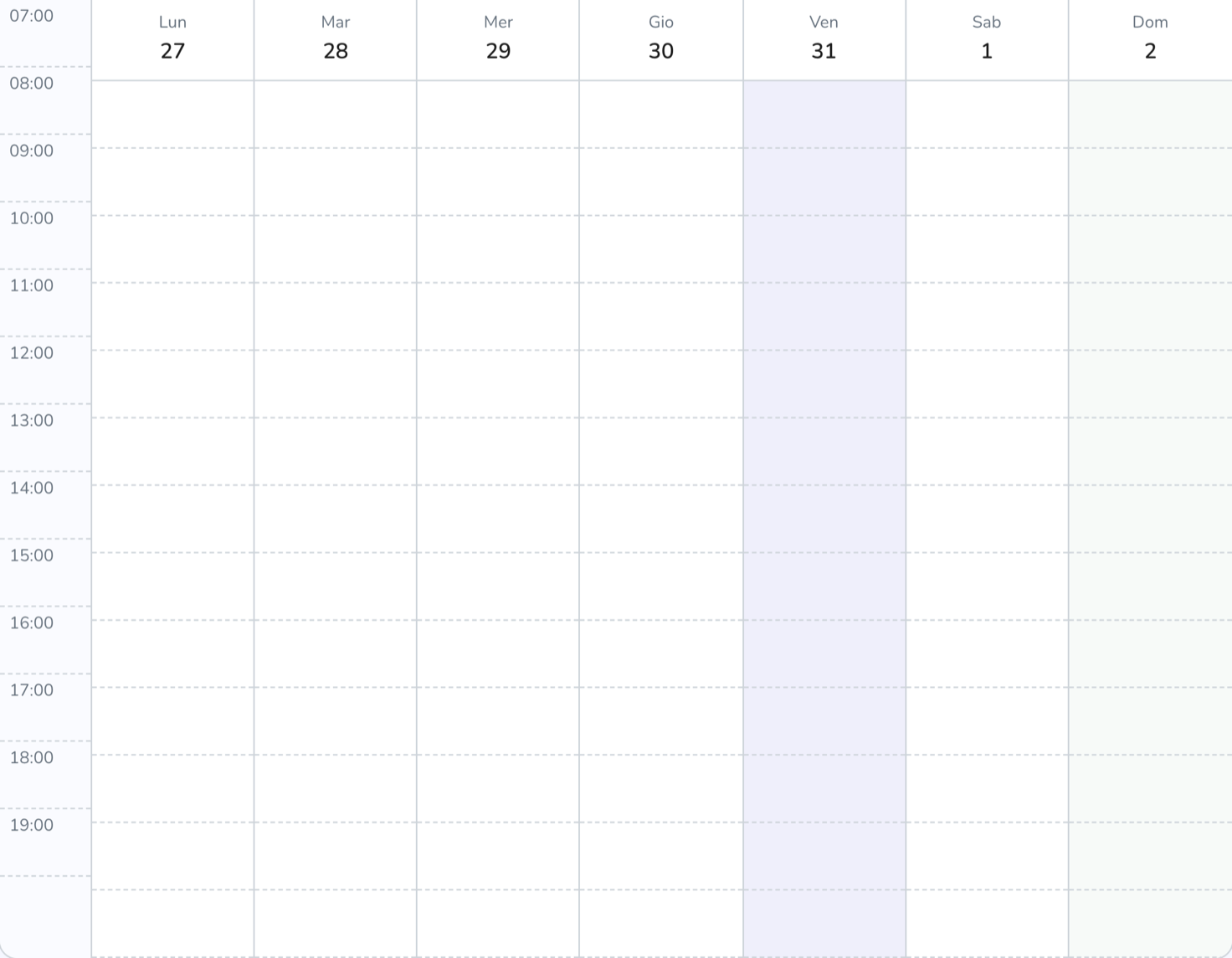
There are three ways to create a shift:
- drag across empty space: the shift is created straight away, with the times you drew;
- click empty space: a window opens, prefilled 9 to 13;
- click an existing shift to edit it.
In the window you set start, end, shift type — Regular, Mobile, On site, Training, Overtime — and a note. Shifts move by dragging, across days too, and stretch by pulling their edges. Two shifts for the same person cannot overlap: if you try, CrankPal tells you which shift is in the way.
To repeat a shift, right-click the block and use Duplicate for the next: pick how many weeks (up to 52) and the shift is copied onto the same weekday. Each person's row header also has two quick templates, Full-time (9–13 and 15–19, Monday to Friday) and Part-time AM (9–13, Monday to Friday).
Clocking in and out#
The timecard widget sits top right, on every page of the app: you don't need to open the shifts page to clock. It shows your state — Off shift, Working, On break, Shift closed — and the hours worked so far, plus any break time.
The buttons change with the state: Clock in when you're off shift, then Break and Clock out while you're working, Back from break while you're on one. Everyone clocks for themselves: you cannot clock on behalf of a colleague.
The order is enforced — you can't come back from a break you never started — and if you get the sequence wrong CrankPal tells you which actions are possible at that point.
Weekly summary and corrections#
The Hours summary tab is a table: one row per person, one column per day, with hours worked and the week's total. Breaks are already deducted from the total.
People forget. Only an administrator can correct: click the day's cell and the timecard window opens, where you change times, delete a wrong entry or add one with + Clock in, + Break, + Back, + Clock out.
Entries added by hand stay marked as such, along with who added them. Time changes and deletions, on the other hand, leave no trace: if you need a history of corrections, keep it outside the app.
Comparing shifts, punches and work on orders#
On the calendar each day shows three layers on top of each other: the planned shift in solid colour; the worked bands derived from the punches, translucent; and the work order sessions, as small numbered tags.
The comparison is visual — there is no calculated discrepancy figure. But it is enough for the two questions that matter: did the person work when they were scheduled, and did the clocked hours end up on some order? The tags are clickable and take you to the work order.
One limit to watch: the grid only draws 07:00 to 19:00. Punches and sessions outside that window count in the totals but don't appear on the calendar.
Team chat and monitor#
Team chat is internal messaging, with no plan requirement. There are two kinds of conversation:
- channels, defined by the system: General for the whole workshop, plus one channel per role (Admin, Manager, Mechanics) which you only see if that role is yours;
- direct messages, one to one with a colleague, opened with the + next to the section.
Unread messages are counted with a dot next to the channel and on the menu entry; opening a channel marks them read. It is plain text: no attachments, no mentions, and the conversation refreshes itself every few seconds.
Team monitor needs the view_team_monitor permission and an administrator or manager role. It shows, live, how many people are working, on break and off shift, one card per person with their state, hours done and — if a timer is running — which order they are on, with the stopwatch ticking. Below is the workshop timeline: assignments, timers started and stopped, lines added and completed, notes. It refreshes itself every ten seconds.
Common problems#
The timecard widget isn't showing top right.
Shifts and timecard are a Premium feature: on the Free plan the widget isn't shown. See features by plan.
Someone forgot to clock out.
Ask an administrator to open the Hours summary, click that day's cell and add the missing entry. It will be marked as added manually.
I have the team monitor permission but the page says it's restricted.
The permission makes the menu entry appear, but the data is restricted to the administrator and manager roles: the two checks add up, and the role is the outer one. With any other role the monitor answers "restricted" even with the box ticked — you need a role change, not one more permission. If the entry doesn't show at all, then it is the view_team_monitor permission that is missing.
Can anyone edit anyone else's shifts?
Yes. Shifts and planning have no dedicated permission: whoever can reach the page can create, move and delete anybody's shifts. Only the punches are protected, and only administrators can correct them.